

Novastar TU4K Pro : A Comprehensive Guide to Setting Up Perfect LED Control
2026-03-12T05:54:47+00:00March 15, 2026|Tags: FAQs NovaStar|
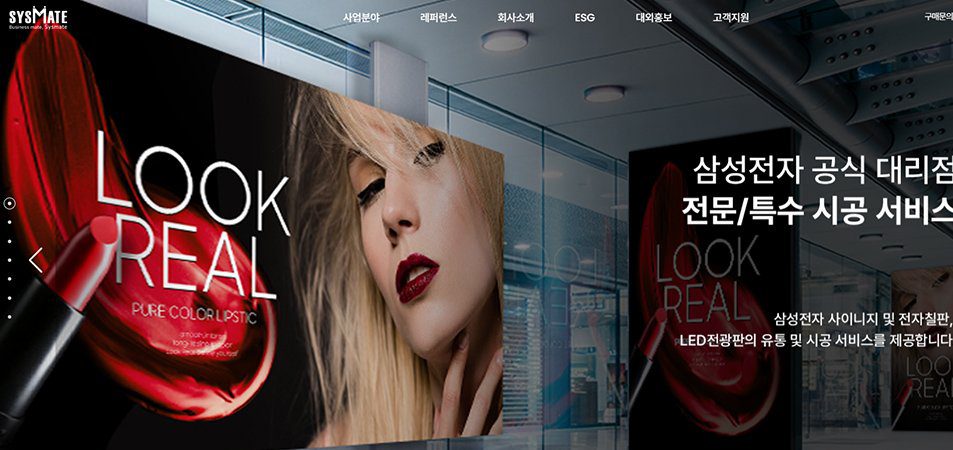
Top 30 LED Display Manufacturers in Korea (2026)
2026-03-12T05:52:12+00:00March 10, 2026|Tags: LED Display Knowledge|
NovaStar MCTRL1600 LED Controller: Complete Guide 2026
2026-03-03T03:54:39+00:00March 3, 2026|Tags: FAQs NovaStar|
The Novastar TU4K Pro is quickly becoming a go-to solution for professionals and businesses looking to control medium to large-scale LED displays with ease. This all-in-one LED playback control processor combines media playback, signal switching, advanced image processing, and wireless screen mirroring into a single device. Designed for versatility and performance, the TU4K Pro caters to a wide range of applications, from corporate showrooms and conference rooms to outdoor standalone LED displays.
In this guide, we’ll explore what makes the Novastar TU4K Pro stand out, how it works, and how you can set it up for optimal performance in your LED projects.
Table of Content
1.About the Novastar TU4K Pro
The Novastar TU4K Pro is a high-performance LED playback control processor tailored for modern LED screen applications. It integrates multiple functionalities—such as media playback, signal switching, image processing, and LED sending—into a single unit. This all-in-one design simplifies installation and operation, making it ideal for environments like meeting rooms, showrooms, retail spaces, and auditoriums.
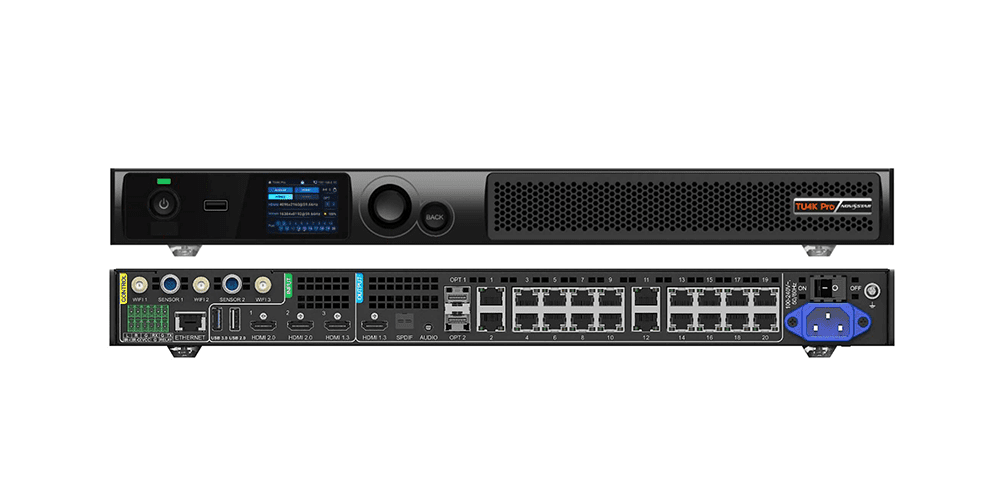
To help you understand its capabilities, here’s a breakdown of its core interfaces:
1.1 Core Inputs and Outputs
| Category | What It Includes | How It Is Used |
| Inputs | HDMI inputs (HDMI 1.3 × 1, HDMI 2.0 × 2), USB ports | Play content from laptops, external players, USB drives, or built-in apps |
| Outputs | 20 Ethernet ports, 2 optical outputs, HDMI monitoring output | Drive LED cabinets, support long-distance fiber, preview current signals |
| Connectivity | LAN, Wi-Fi, Bluetooth |
Inputs
The TU4K Pro supports a variety of input sources:
- HDMI inputs: For connecting laptops, media players, and other devices.
- USB ports: For direct playback from storage devices or firmware updates.
- Built-in Android system:Run apps, play videos, and manage content without external hardware.
Outputs
The device features 20 Gigabit Ethernet outputs, which are essential for driving medium to large LED walls. Additionally, 2 optical outputs support long-distance fiber connections, while the HDMI monitoring output allows users to preview the signal before it reaches the screen.
Connectivity Options
With LAN, Wi-Fi, and Bluetooth, the TU4K Pro ensures flexible connectivity. The LAN port provides stable wired control, while Wi-Fi enables wireless casting and mobile setup. Bluetooth pairs seamlessly with the remote controller for effortless navigation.
2.Key features of Novastar TU4K Pro
The Novastar TU4K Pro focuses on delivering smooth control, reliable playback, and advanced image processing. Below are its standout features:
2.1 Intelligent Configuration
Setting up the TU4K Pro is straightforward, thanks to its intelligent configuration tools. Most tasks can be completed using a smartphone instead of a laptop or additional equipment.
- Fast Setup With a Phone: Use the VNNOX Care app to scan, configure, and map your LED screen within minutes.
- Quick Cabinet Recognition:Automatically detects cabinet layouts and applies the correct configuration files.
- Simple Calibration: Adjust brightness, alignment, and color settings using your phone’s camera.
2.2 User Interaction and Daily Control
NovaStar has redesigned the user interface for smoother navigation. Key features include:
- Cleaner Interface: Simplified menus and faster transitions make daily operations easier.
- Quick OSD Access:Adjust brightness, scale, and source selection without interrupting playback.
- Touch-Assisted Control:Use the Assistive Touch sidebar for shortcuts to split-screen control, input switching, and local playback.
2.3 Playback and Program Management
The TU4K Pro supports multiple playback paths:
- USB Playback: Plug in a USB drive for standalone playback.
- Internal Storage: Store and manage content directly on the device.
- Wireless Mirroring: Mirror screens from Windows, macOS, iOS, and Android devices.
- Cloud Publishing: Push content remotely via NovaStar’s VNNOX platform.
2.4 Wireless Mirroring and Multi-Source Display
Wireless mirroring is one of the TU4K Pro’s strongest features:
- Stable Mirroring: Supports low-latency wireless casting for presentations and meetings.
- Up to Nine-Way Split Screen: Display content from multiple devices simultaneously.
2.5 Real-Time Monitoring and Maintenance
The TU4K Pro includes tools for monitoring and troubleshooting:
- 24/7 Screen Status Monitoring: Tracks brightness, temperature, and connectivity.
- Fault Diagnosis:Provides alarms and descriptions for quick issue resolution.
- Cloud Backup: Save configuration files to the cloud for easy recovery.
3.Applications and Use Cases of Novastar TU4K Pro
The Novastar TU4K Pro is highly versatile, catering to a variety of professional and commercial environments. Here’s where it shines:
3.1 Corporate Showrooms and Conference Rooms
- Wireless Presentation: Enables seamless screen sharing during meetings and presentations.
- Multi-Window Layouts: Supports split-screen functionality for collaborative discussions.
3.2 Auditoriums and Event Spaces
- High-Resolution Displays:Delivers crisp, detailed visuals for large audiences.
- Flexible Content Management:Easily switch between live feeds, pre-recorded videos, and interactive presentations.
3.3 Retail and Outdoor Displays
- Dynamic Content Updates: Use VNNOX cloud publishing to push promotions and advertisements to multiple screens simultaneously.
- Durability:IP20-rated design ensures reliable performance in indoor and semi-outdoor settings.
4.Installation and Setup Process
Setting up the Novastar TU4K Pro is straightforward, thanks to its intuitive interface and mobile app integration. Follow these steps for a smooth setup:
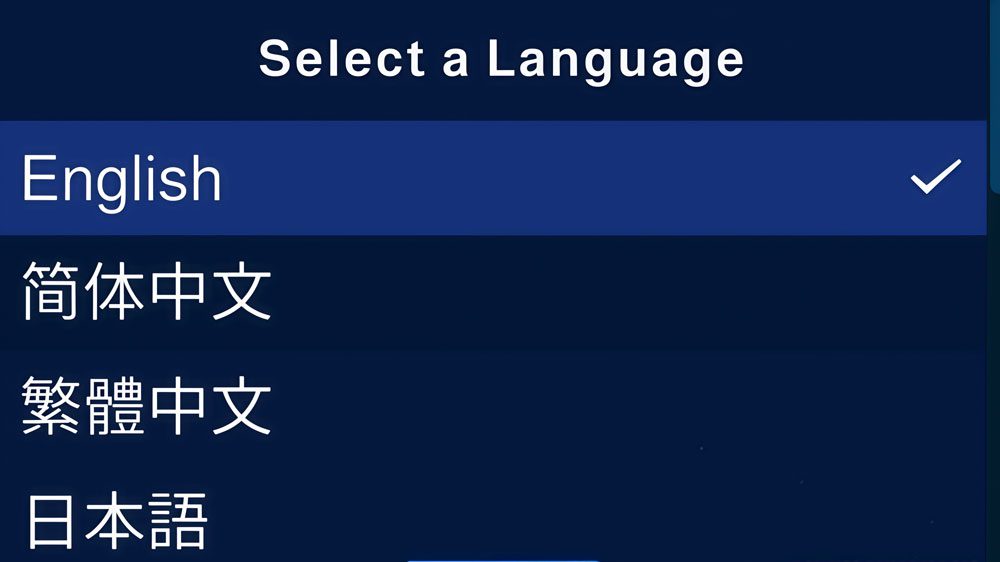
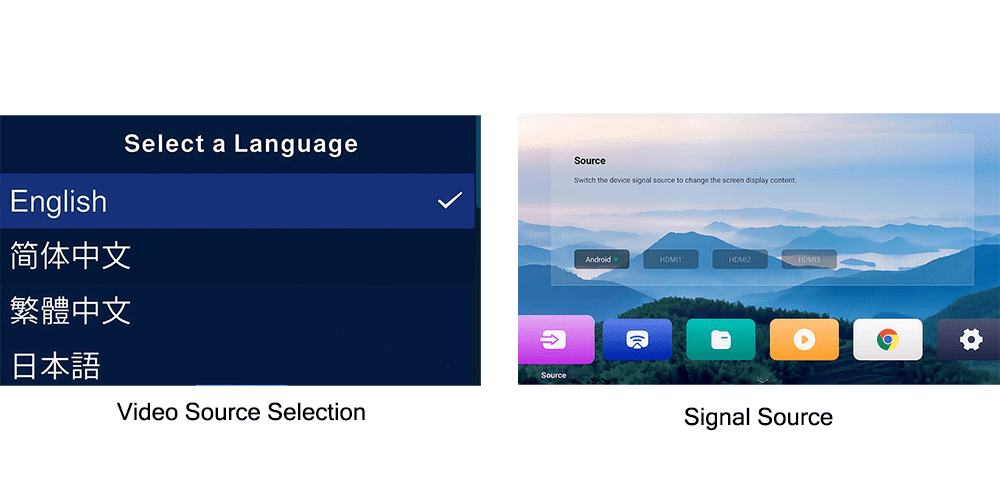
Step 1: Select Language
Choose the system language from the list.
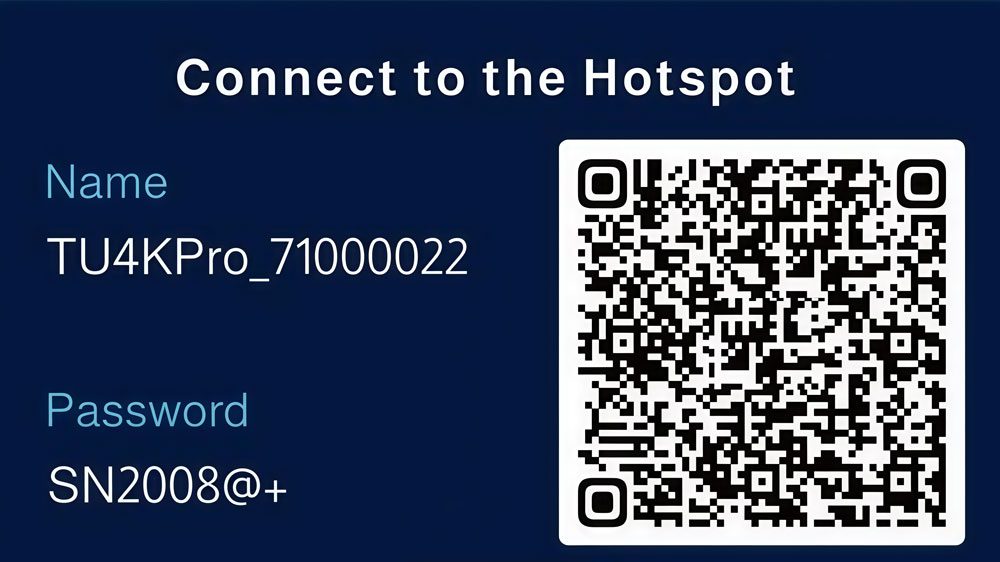
Step 2: Connect to the Hotspot
The TU4K Pro will display its Wi-Fi hotspot name and password. Connect your phone or computer to this hotspot to continue the setup.
Step 3: Rename the Device
Assign a recognizable name (e.g., Meeting Room LED Wall).
Note: The hotspot name will update automatically.
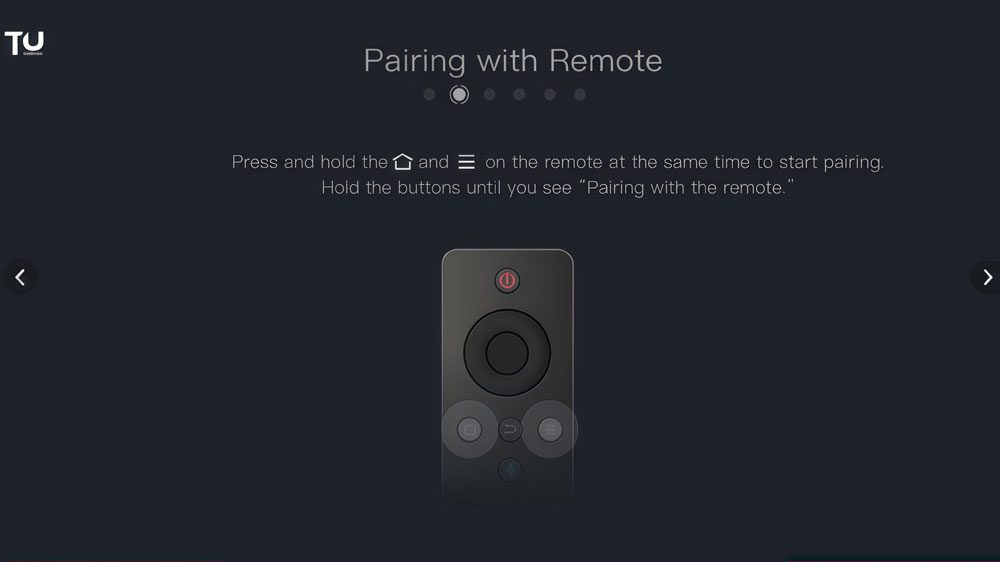
4.2 Pair the Remote Control
The remote uses Bluetooth.
- Point the remote at the device’s infrared sensor.
- Press and hold Menu + Home until the pairing prompt appears.
After pairing, you can control playback, switch inputs, and open the OSD menu.
4.3 Configure the Screen (Mobile App)
Use the VNNOX Care mobile app.
- Connect your phone to the device hotspot.
- Open the app and tap Connect to Hotspot.
- The app automatically detects receiving cards and cabinets.
- Confirm the screen layout and apply the configuration.
Most standard screens can be configured in a few minutes.
4.4 Cabinet Recognition
The app can automatically identify cabinet connections.
- Open the Topology Tool in VNNOX Care.
- Take a clear photo of the powered-on screen.
- The app maps the cabinet layout automatically.
4.5 Add Content
You can display content using several methods:
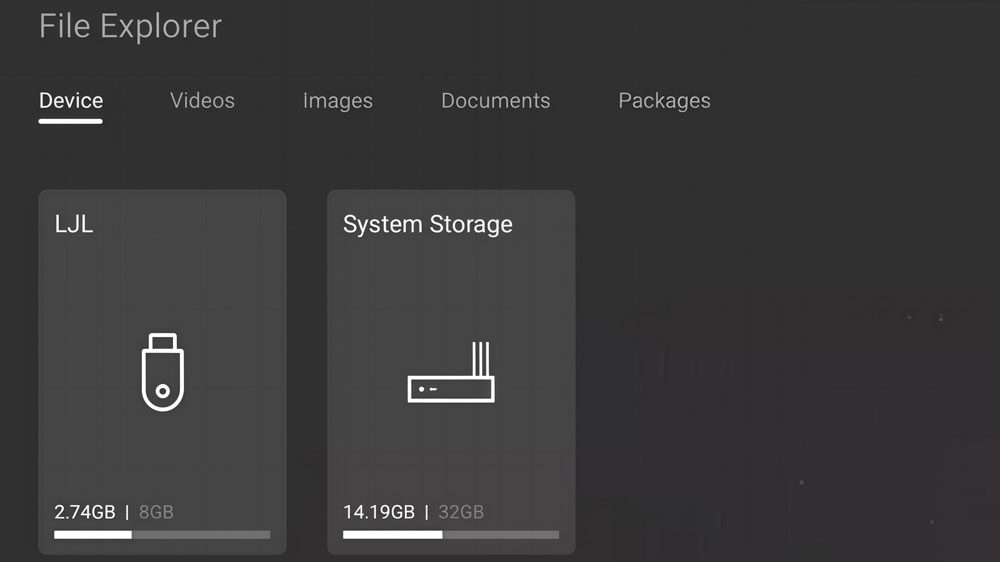
USB Drive– Insert a USB drive and play files through File Explorer.
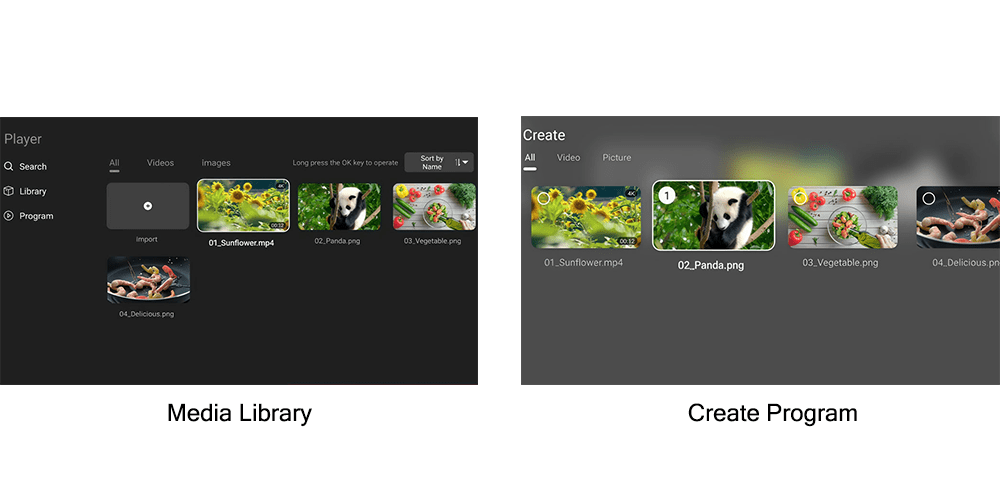
Internal Storage– Upload files and use the Media Player app.
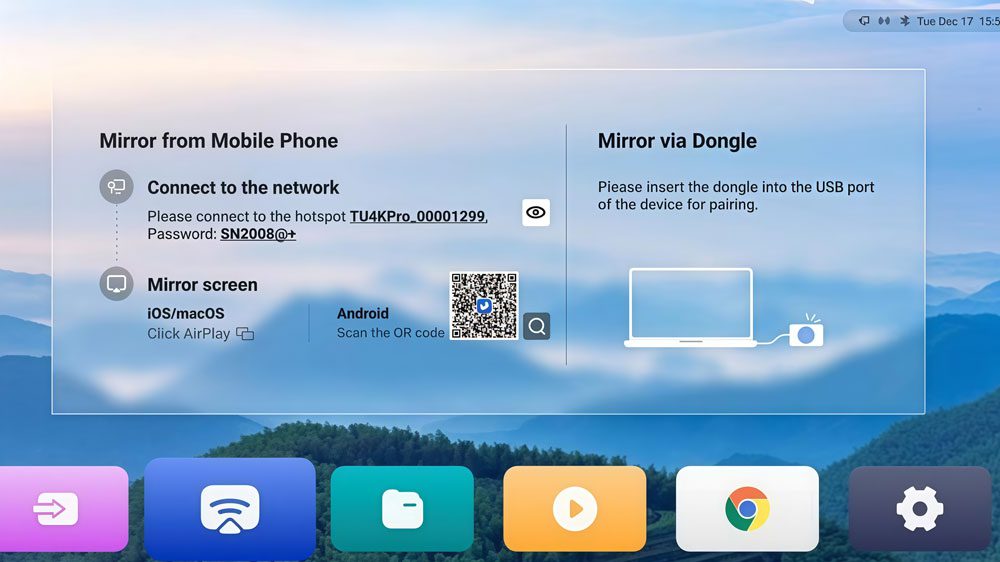
Wireless Mirroring– Mirror a phone or laptop screen (5GHz Wi-Fi recommended for 4K).
Cloud Publishing – Create and send programs remotely through NovaStar VNNOX.
4.6 Switch Input Sources
The TU4K Pro supports Android (internal), HDMI, and USB sources.
You can switch sources using:
- Remote control
- Front LCD menu (Video Source Settings)
- ViPlex Handy mobile app
- On-screen Assistive Touch
4.7 Use the LCD Control Menu
The front LCD menu allows quick adjustments:
- Screen brightness
- Volume
- Video source selection
- Display control (Normal / Freeze / Blackout / Test Pattern)
- Network settings
Press the front knob to enter the menu and rotate it to navigate.
4.8 Troubleshooting Tools
The system provides basic diagnostic tools.
Real-Time Status– View cabinet connections, signal, and network status.
Diagnostics– Run system checks under System Settings > Diagnostics.
Export Logs– Save logs to USB for technical support.
Backup Configuration– Save screen settings to hardware.
4.9 Final Check Before Use
Before operating the screen, confirm:
- Input signal is detected
- Brightness is appropriate for the environment
- Correct picture mode is selected
- Network connection is stable (if using wireless)
- Scheduled programs are ready
Once these checks are complete, the TU4K Pro is ready for use.
5.Novastar TU4K Pro vs Other Models
To help you decide whether the TU4K Pro is the right fit for your project, here’s a comparison with other popular models in the Novastar lineup:
| Feature | TU4K Pro | TU20 Pro | TU15 Pro |
| Pixel Load Capacity | 13 Million Pixels | 3.9 Million Pixels | 2.6 Million Pixels |
| Video Decoding | 8K@24/30Hz, 4K@60Hz | 4K@60Hz | 4K@60Hz |
| Ethernet Ports | 20 | 6 | 4 |
| Optical Outputs | 2x 10G OPT | Not Supported | Not Supported |
| Android Version | Android 13 | Android 11 | Android 11 |
6.FAQ
Q1. Does the TU4K Pro support 8K video playback?
Yes, the TU4K Pro supports 8K video playback at 24/30Hz using H.265/HEVC and VP9 encoding formats.
Q2. Can I use the TU4K Pro without a laptop?
Absolutely! You can configure the device using the VNNOX Care app on your smartphone.
Q3. How do I update the firmware?
Firmware updates can be performed via USB drive, local file, or cloud push through VNNOX.
7.Conclusion
The Novastar TU4K Pro is a powerful, feature-rich LED playback control processor designed to meet the demands of modern LED display applications. With its robust hardware, advanced image processing capabilities, and user-friendly interface, it’s an excellent choice for businesses and professionals seeking reliable and high-performance LED control solutions.
Whether you’re managing a small meeting room or a large-scale event space, the TU4K Pro provides the tools you need to deliver stunning visuals and seamless presentations. For additional resources and support, visit our website to access manuals, firmware, and software downloads.
Ready to elevate your LED display experience? The Novastar TU4K Pro has got you covered!
 Top 30 LED Display Manufacturers in Korea (2026)