

2026-10-16T02:30:23+00:00October 16, 2026|
2026-10-16T02:28:57+00:00October 16, 2026|
2026-10-09T02:41:38+00:00October 9, 2026|Tags: 3D Billboard, LED Display Knowledge, Naked-Eye 3D|
NovaStar Viplex Handy is a mobile app developed by NovaStar for Android and iOS phones, specifically for LED display control systems. It manages and configures Taurus series multimedia players and other NovaStar controllers, providing screen management, solution editing, system settings, and media library functions. Users can quickly configure, monitor, play content, and adjust brightness over a wireless network, and it supports multi-screen content synchronization.
This guide will provide you with Viplex Handy user manual downloads and FAQs to help you get started quickly and manage your LED display efficiently.
Table of Content
1. Key advantages of NovaStar Viplex Handy
(1) User-friendly interface: The application page design is intuitive and friendly, in line with user habits, and the operation and navigation are simple and easy to use.
(2) Flexible control: Viplex Handy supports LAN (local device) and Internet (remote access) control, facilitating flexible device management.
(3) Wireless convenience: Devices can be easily connected and accessed via wireless networks, without having to rely on laptops most of the time.
(4) Synchronous playback: Supports simultaneous playback of content on multiple screens, providing a unified and coordinated viewing experience.
(5) Intelligent brightness adjustment: Users can automatically adjust the screen brightness according to the ambient light, or set a timed brightness plan.
(6) Dual Wi-Fi function: supports both Wi-Fi AP (as a hotspot) and Wi-Fi Sta (as a client), providing diverse connection methods.
(7) 4G connection: Devices with built-in 4G modules can access mobile networks and can still be controlled when there is no Wi-Fi or local area network.
(8) Dual-mode video output: supports synchronous and asynchronous video output modes to meet various application requirements.
(9) Automatic content scaling: It has an “auto-fit screen” function that can intelligently adjust the content ratio to match the display screen.
(10) Remote publishing: Provides a new remote publishing mode, allowing users to publish solutions to cloud devices via the Internet.
2. Main features of NovaStar Viplex Handy
NovaStar Viplex Handy is a mobile app designed specifically for the NovaStar LED display control system, providing four core functions: screen management, solution editing, system settings, and media library. Specific functions include:
2.1 Screen Management
- Network connection: Search and connect the LED control card in the local area network (LAN).
- Quick Configuration: Supports quick completion of screen parameter settings.
- Real-time monitoring: view the working status of the display screen in real time.
- Playback management: manage and control playback content.
- Brightness adjustment: adjust the screen brightness.
- Cloud Binding: Supports binding to cloud servers.
2.2 SolutionEdit
- Users can quickly create and edit various playlists (solutions).
- The application also supports sending the edited solution to the LED display control card.
2.3 System Settings
- Language settings: Switch the application display language.
- Notification Settings: Manage push notification preferences.
- Help: Access help documentation and related information.
2.4 Media Library
- Users can browse and manage multimedia files on their phones.
- Easily process image and video files.
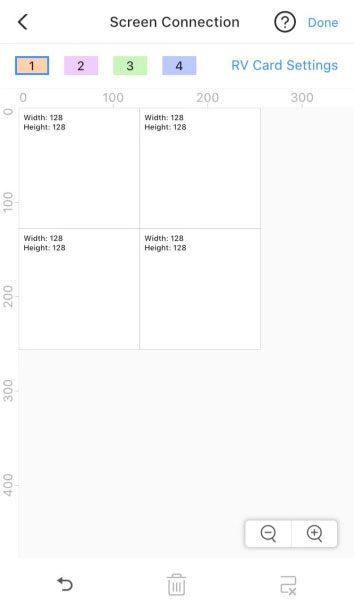
Viplex Handy Screen Connection
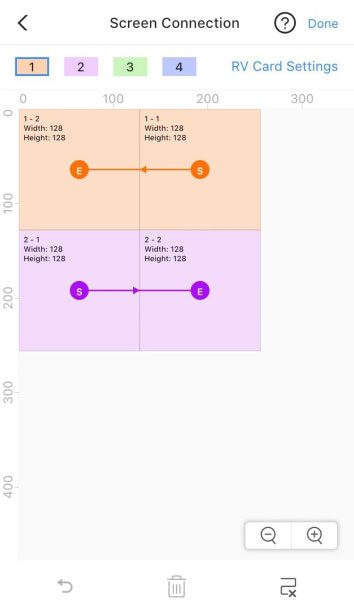
Viplex Handy Receiving Card Connection
3. Download the Viplex Handy app and manual
To start using ViPlex Handy, you can click the link below to download the required files. The user manual will help you complete the screen configuration of Viplex Handy.
In addition to the application, we strongly recommend that you register for the LED screen cloud platform. After registration, users can obtain various resources provided by NovaStar for free, including software, user manuals, firmware, etc.
4. NovaStar Viplex Handy equipment control solution
ViPlex Handy supports two ways to control devices: LAN control and Internet control.
4.1 LAN Control
For controlling devices connected via WiFi or a local area network (LAN), select “LAN Control.” This allows you to manage devices, create plans, and publish content locally, even without an internet connection. This method is particularly suitable for use in a local network environment, providing a more stable and direct connection.
4.2 Internet Control
Suitable for controlling connected devices. After selecting “Internet Control,” you can remotely access and control your LED screen from virtually anywhere, as long as the device is online! Follow the prompts to log in to the VNNOX cloud platform to remotely manage devices, create plans, and publish content—especially useful for displays distributed across multiple locations.
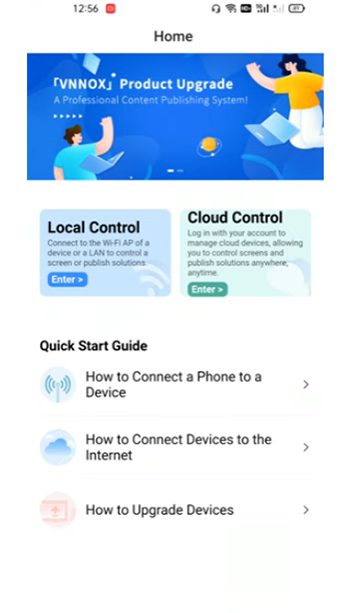
When you first open ViPlex Handy, you’ll be prompted to select a control method (as shown below) . You can choose based on your device’s network environment, and you can switch between them at any time in “My > Device Control Scheme.”
5. Viplex Handy APP Tutorial
Step 1: Open the VIPLEX HANDY APP
Follow these steps:
1) Open the app and agree to the user policy
2) Browse the presentation and click “Start”
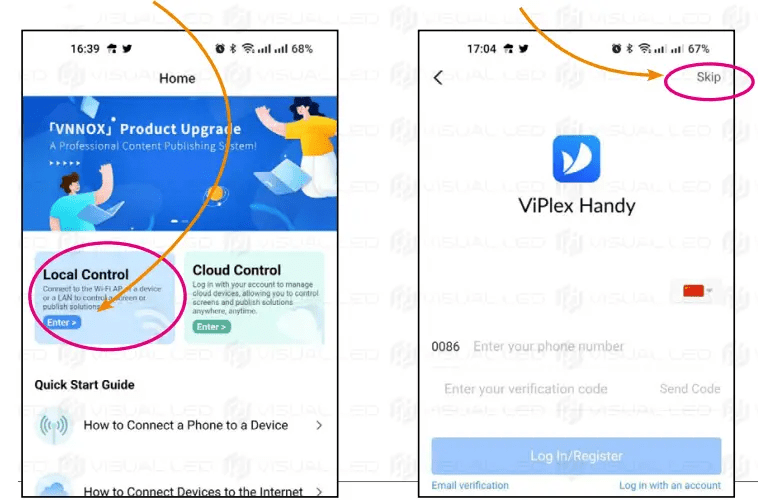
3) Find the “Local Control” area on the homepage
4) Just click “Skip”
Step 2: Connect to the content player
(Wiring diagram:)
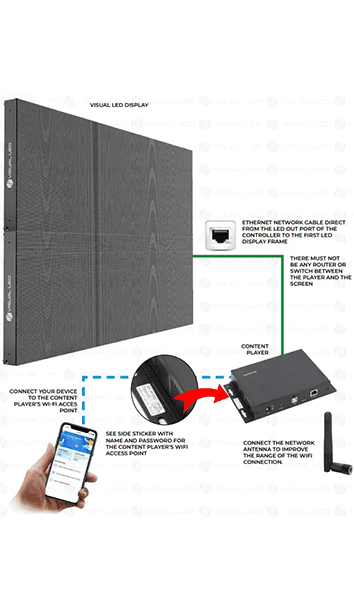
First connect to the player’s Wi-Fi hotspot (usually named APXXXXXXXXX)
Note: During this step, your phone must remain connected to this Wi-Fi and not jump out!
(1) Enter the settings screen
(2) Select “Wi-Fi Configuration”
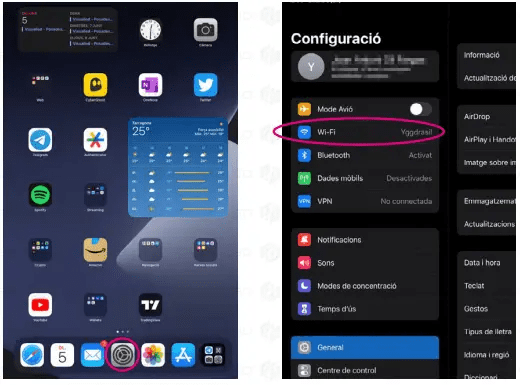
(3) Find the player’s network in the Wi-Fi list: APXXXXXXXXX), select
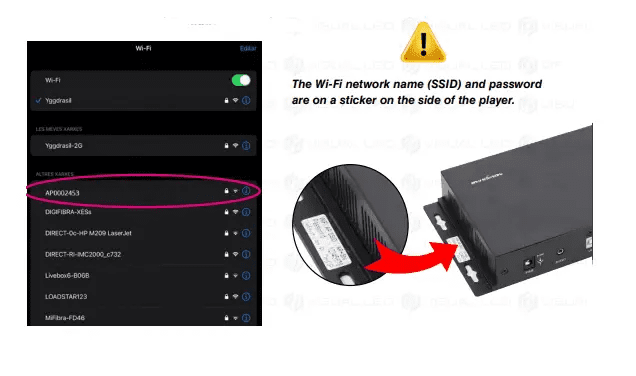
(4) Enter the player password (the default is 12345678) and connect to the network
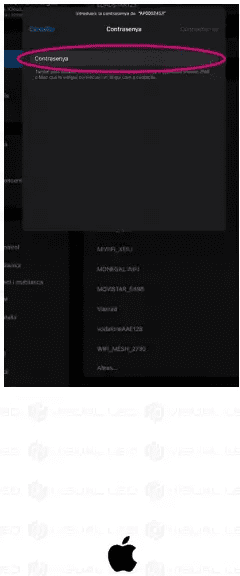
Tips:
iOS users are advised to set “ASK TO LOGIN” to “ASK” to avoid being automatically kicked off
(5) This Wi-Fi does not have Internet access, it is used to connect directly to the LED screen player
If your phone is set to “auto connect to Wi-Fi”, it is recommended to turn it off first, otherwise it may disconnect automatically
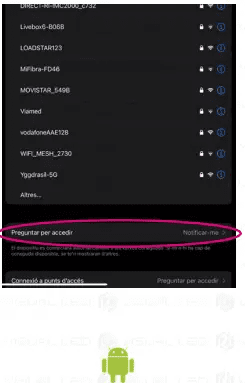
Android users can disable “Auto-connect” in the known network settings.
Step 3: Log in to the content player
Once connected, you can log in:
- Open the VIPLEX HANDY APP and select “Local Control”
- Make sure your phone is still connected to the player’s Wi-Fi
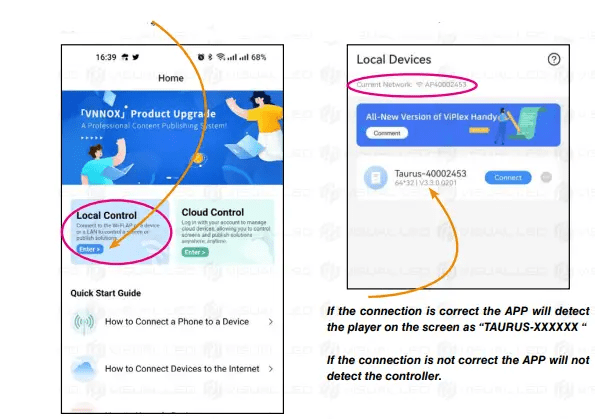
If connected correctly, the APP will recognize the device as “TAURUS-XXXXXX”
If the connection is incorrect, the APP cannot detect the controller.
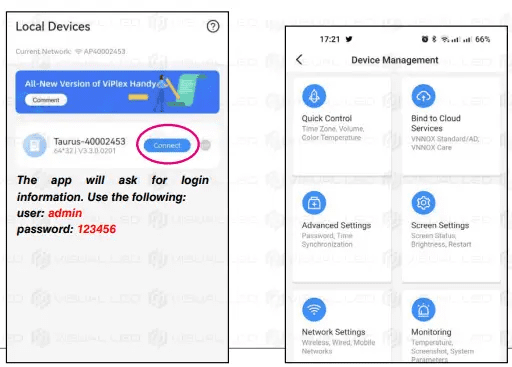
- Click “Connect”
- After successful login, you will see the following interface
Step 4: Connect the player to the Internet
Choose a setting method:
Method 1: Plug in the network cable
Use a network cable to connect the player’s Ethernet port to the router or switch
The player will automatically obtain the network (DHCP mode)
Method 2: Wi-Fi
We need to enter your router’s Wi-Fi name and password in the APP.
After setting up, the player’s own Wi-Fi hotspot will be turned off and the phone will be disconnected. To continue controlling it, you need to switch your phone to the same router Wi-Fi.
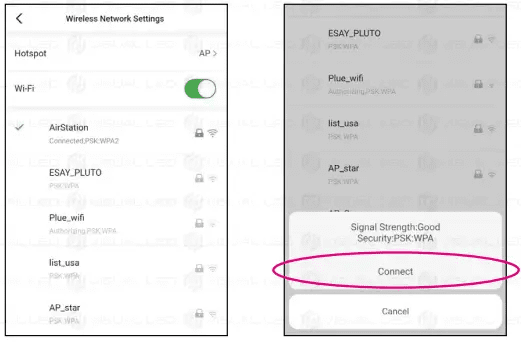
(1) Click “Network Settings”
(2) Select “Wireless Network Settings”
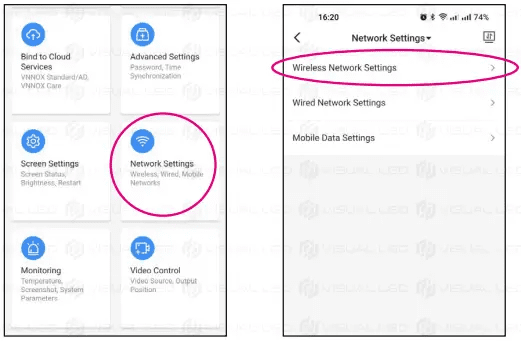
(3) The list will show the Wi-Fi that can be searched
(4) Select the one you want and click “Connect”
(5) Enter the Wi-Fi network password
(6) Click “OK”
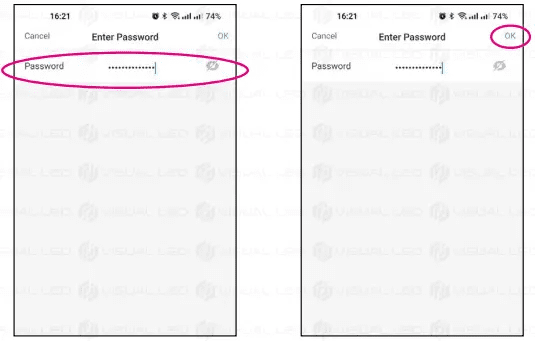
Done! The player is now connected to your Wi-Fi and its hotspot is turned off. You can now exit the app .
6. Viplex Handy FAQ
6.1 Does ViPlex Handy work on Android and iOS?
Of course! ViPlex Handy supports both Android and iOS devices, allowing for easy screen control and management.
6.2 How to bind the device to the cloud?
After you complete the binding operation, if the device has not been successfully bound, it will be displayed on the Inactive Devices page, as shown below .
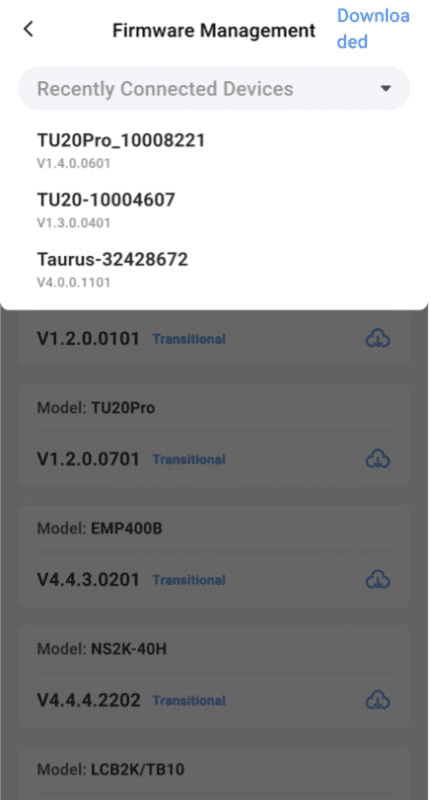
6.3 How do I check the device’s firmware version?
Step 1: Connect your device first;
Step 2: Open Firmware Management > Recently Connected Devices;
Step 3 : You can see the firmware version of the device in the drop-down list.
6.4 Can I use ViPlex Handy to remotely manage content?
No problem! Simply enable Internet control mode and connect to the VNNOX cloud platform, and you can remotely manage content and control devices from anywhere with an internet connection.
7.Conclusion
NovaStar ViPlex Handy makes managing LED displays easier than ever. Whether for local or remote control, it provides a flexible and convenient solution. With an intuitive interface, powerful features, and cross-platform support, users can easily configure screens, publish content, and perform real-time monitoring.
If you are looking for an efficient and worry-free LED control tool, ViPlex Handy is undoubtedly a trustworthy choice.