
2026-09-17T03:16:22+00:00September 20, 2026|Tags: LED Display Knowledge|
2026-09-15T03:13:01+00:00September 15, 2026|Tags: LED Display Knowledge|
2026-09-17T06:25:39+00:00September 8, 2026|Tags: LED Display Knowledge|
You’re staring at a vendor quote with 12 pixel pitch options, from P0.9 to P10. Pick wrong, and you either waste $20,000 on resolution nobody can see, or end up with a pixelated screen your team refuses to use for presentations. An LED pixel pitch calculator takes the guesswork out of this decision. If you’re new to LED display specifications, our indoor LED screen guide covers the fundamentals before you dive into the calculator.
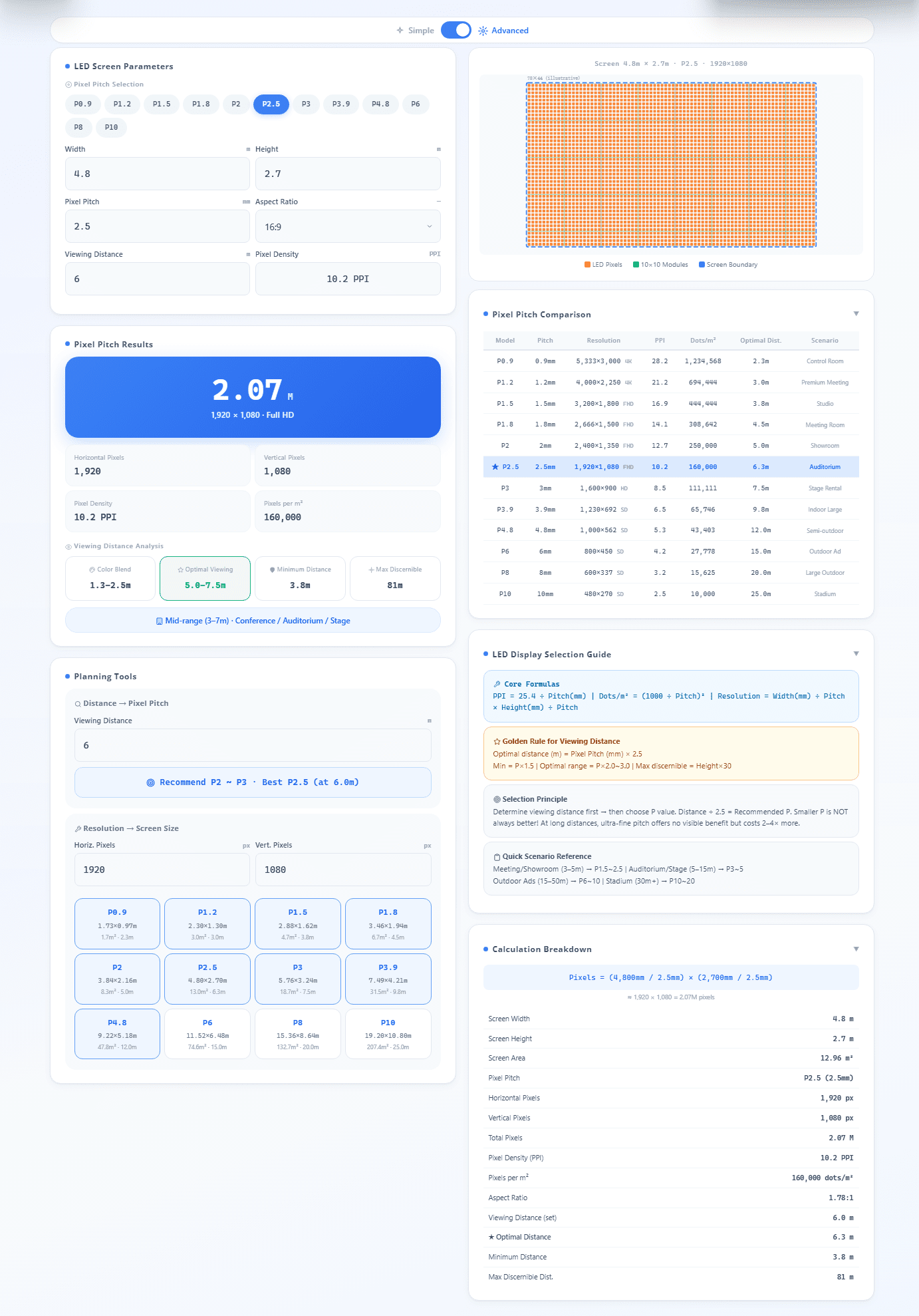
We’ll walk through a real calculator in its Advanced mode: a dual-panel interface with parameter input, viewing distance analysis, planning tools, and a comparison matrix in one screen. By the end, you’ll know exactly which P-value fits your room, your content, and your budget.
Try the tool: This guide walks through the LED Pixel Pitch Calculator — open it in a separate tab and follow along with the examples.
For an indoor project example, explore the EA250WH5 Indoor LED Display
1.What an LED Pixel Pitch Calculator Actually Does
A pixel pitch calculator takes your screen dimensions, desired pixel pitch, and viewing distance, then outputs the numbers that tell you whether your setup will look sharp or grainy. The tool we’re working with goes further: it adds reverse planning tools, a 12-tier comparison table, and a formula-backed selection guide.
Here’s what the calculator produces from your inputs:
- Pixel density (PPI) — how sharp the image will look
- Total resolution — horizontal × vertical pixel count
- Viewing distance analysis — four distinct zones from "too close" to "too far"
- Scene recommendation — conference room, auditorium, or stadium
- Pixel count and dots/m² — the physical LED count driving your cost
The calculator doesn’t just run one formula. It runs the same calculations across all 12 pitch tiers simultaneously so you can compare P1.5 against P2.5 against P3.9 in one glance. That comparison, not the single recommendation, is where the value is.
2.The Calculator Workflow at a Glance
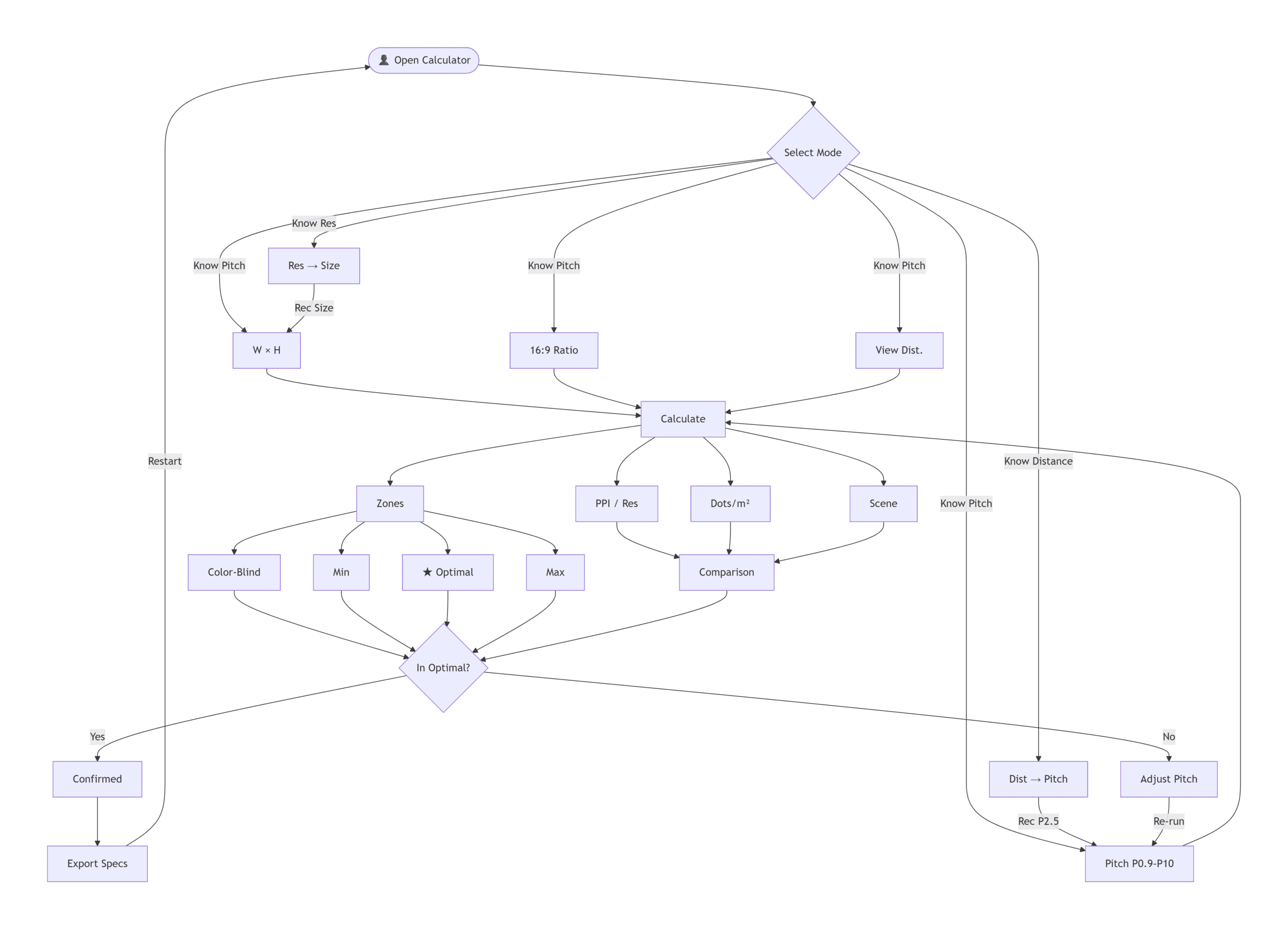
Figure 1: Complete calculator workflow — forward path (inputs → outputs), reverse planning tools, zone analysis, and the final decision gate.
In short: The calculator offers two paths. Forward: enter your pitch, screen size, and distance to get PPI, viewing zones, and a scene recommendation. Reverse: enter your viewing distance or target resolution, and the tool tells you which pitch to use. Both paths converge on one question — does your viewing distance fall in the optimal zone? If yes, export your specs. If no, adjust the pitch and re-run.
3.Getting Started: The Input Fields That Drive Every Recommendation
Before the three steps: the five inputs that drive every recommendation.
The tool we’re analyzing has five input fields. Each one changes the output in a specific way.
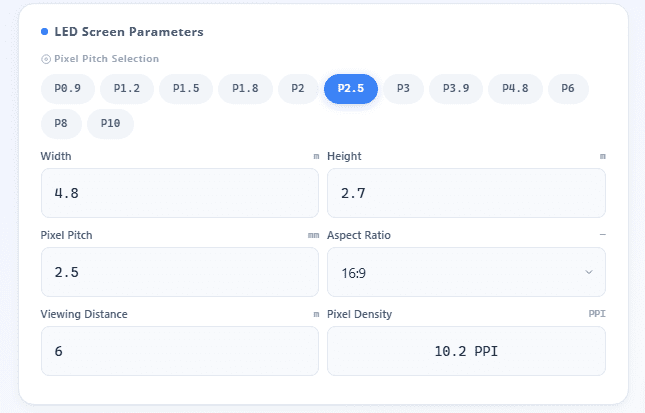
Pixel Pitch Selection (P0.9 to P10)
The top of the input panel shows 12 pitch options arranged from P0.9 (finest) to P10 (coarsest). The currently selected P2.5 is highlighted in blue. If you already have a vendor quote for a specific pitch, select it here and the calculator will tell you whether it fits your room. If you don’t know which pitch to start with, leave this alone — the Planning Tools section will reverse-calculate the right pitch from your viewing distance.
Screen Width and Height
The tool shows Width: 4.8m, Height: 2.7m with an auto-detected 16:9 aspect ratio. These should match your actual installation wall, not an aspirational screen size. If your wall is 5.2 meters wide, enter 5.2 — the calculator will tell you what resolution and pitch that physical constraint supports. Guessing a smaller or larger number defeats the purpose; the output will be wrong.
Aspect Ratio Lock
16:9 is the default and correct for nearly all modern content. The calculator auto-maintains this ratio when you change width or height — changing one dimension automatically adjusts the other. This prevents you from accidentally designing a screen that crops your video content or leaves black bars.
Viewing Distance
The tool shows 6 meters. This is the single most important input in the entire calculator. Measure from the screen position to your closest viewer, not the average seat and not the back wall. If your front row of conference attendees sits 3 meters from the screen, enter 3 — even if the room is 12 meters deep. The calculator’s pitch recommendation is only as good as this number.
If you are unsure how viewing distance affects perceived image quality, please watch the case study videos on our YouTube channel—
—which demonstrate viewing experiences under various parameters.
Step 1: Set Your Screen Dimensions and Target Pixel Pitch
Start with the example from our calculator:
- Width: 4.8 m
- Height: 2.7 m
- Aspect Ratio: 16:9 (auto-locked)
- Pixel Pitch: P2.5
- Viewing Distance: 6 m
Auto calculate. The tool returns:
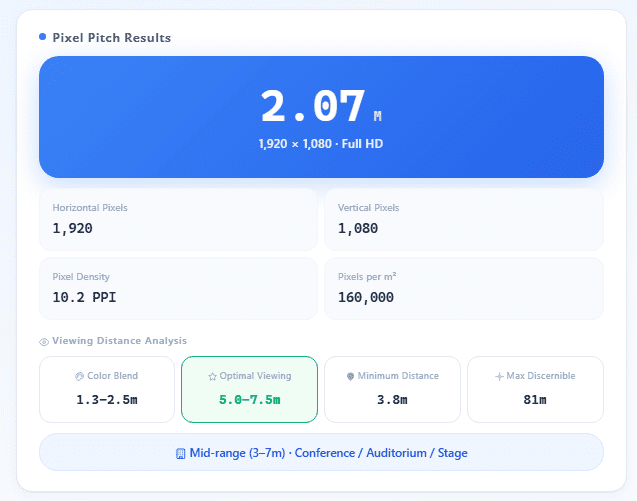
Pixel Density: ~10.2 PPI (industry standard: 25.4 ÷ pitch in mm = 25.4 ÷ 2.5 = 10.2)
That number — 10.2 pixels per inch — might sound low compared to a smartphone screen (300+ PPI). But LED walls are viewed from meters away, not inches. At 6 meters, 10.2 PPI delivers a smooth, sharp image for video and presentation content.
Understanding the Resolution Output
The calculator shows the full pixel math in its Calculation Breakdown panel:
Pixels = (4800mm ÷ 2.5mm) × (2700mm ÷ 2.5mm)
       = 1920 × 1080
       = 2,073,600 (2.07 million pixels)
Your 4.8m × 2.7m wall at P2.5 produces exactly 1920×1080 — Full HD. That’s a perfect match. Your content sources (laptops, media players, video processors) output 1080p natively. There’s no wasted resolution and no scaling artifacts.
Try Toggling to a Different Pitch
Toggle the pitch selection while keeping the screen size fixed at 4.8m × 2.7m:
| Pitch | Resolution | PPI | Total Pixels |
|---|---|---|---|
| P1.5 | 3,200 × 1,800 | 16.9 | 5.76M |
| P2.5 | 1,920 × 1,080 | 10.2 | 2.07M |
| P3.9 | 1,231 × 692 | 6.5 | 0.85M |
At P1.5, you’re pushing 5.76 million pixels — nearly 3× more than 1080p. A standard 1080p video processor can’t drive that at 60fps without a costly upgrade. At P3.9, you drop below 1080p — text and fine details visibly degrade. P2.5 hits the sweet spot: native 1080p, no wasted capacity, standard hardware.
Step 2: Read the Viewing Distance Analysis — Find Your Optimal Zone
This is the core output panel. The calculator shows four distinct viewing zones for your selected pitch.
Here’s what the tool displays for P2.5:
| Zone | Distance Range | What It Means |
|---|---|---|
| Subpixel Blend Zone | 1.3m – 2.8m | RGB subpixels haven’t blended — colors appear as discrete red/green/blue dots (unrelated to color vision) |
| Minimum Distance | 3.8m | Closest point before individual pixels become visible |
| Optimal Viewing Zone ✅ | 5.0m – 7.5m | The sweet spot — image appears smooth and fully sharp |
| Maximum Distance | 81m | Farthest point where any detail remains theoretically visible |
Your input said 6 meters. The calculator confirms: 6m is inside the optimal zone (5.0m–7.5m). P2.5 is the right choice.
The Practical Check: Where Is Your Front Row?
The most common calculator mistake — across every forum and case study we reviewed — is entering the wrong viewing distance. People average the room, or measure to the middle of the audience, or just guess.
Measure to the closest person who will look at your screen. If that person is at 2 meters, P2.5 fails — the minimum distance is 3.8m. At 2m with P2.5, they’ll see individual pixels. The image will look grainy. You’d need to drop to P1.5 or P1.2 to get the minimum distance down to ~2.2m or ~1.8m.
If your closest viewer is at exactly 3.8m, P2.5 just barely works. The image won’t be pixelated, but it won’t look impressive either. You’re at the edge of the spec. This is when you consider going one tier finer — not because the spec sheet says so, but because the human experience at the margin is mediocre.
Scene Recommendation
The calculator adds a practical layer on top of the raw numbers:
- Medium distance (5–7m) · Conference Room / Auditorium / Stage
This maps your numbers to a real-world venue type. If your actual room matches the recommended scene, you have confirmation. If it doesn’t — say you’re installing in a luxury retail store where customers walk within 1 meter — the mismatch tells you P2.5 is wrong regardless of what the zone chart says. The scene recommendation is a sanity check, not decoration.
Step 3: Use the Planning Tools to Cross-Check Everything
The calculator includes two reverse-engineering tools that work backwards from your requirements. These are the features that separate a real calculator from a simple formula widget.
Tool 1: Distance → Pixel Pitch
Input your viewing distance (6m). The tool tells you what pitch to use:
- Recommend P2 = P3, Best P2.5 (at 6m)
This is the reverse of the main calculator. Instead of "I have P2.5, is 6m good?" it answers "I have 6m, what pitch should I buy?" If you walked into this process with no idea whether you need P1.5 or P3.9, start here. The Planning Tool gives you a target pitch range (P2–P3) and a specific recommendation (P2.5).
Cross-check: does the Distance → Pitch recommendation match what you selected in Step 1? If you selected P1.5 in the main input but the Planning Tool says P2.5 is optimal for your distance, you’re over-spec’d. The two tools agree — you just didn’t like the answer. Trust the math.
Tool 2: Resolution → Screen Size
Given a target resolution (1920×1080), the calculator shows what physical size each pitch tier requires:
| Pitch | Screen Size for 1080p | Fits a 4.8m Wall? |
|---|---|---|
| P1.5 | 2.88m × 1.62m | ❌ Smaller than your wall |
| P2.5 | 4.80m × 2.70m | ✅ Perfect match |
| P3.9 | 7.49m × 4.21m | ❌ Larger than your wall |
This tool answers a specific question: "I want 1080p resolution. How big will the screen be at each pitch tier?"
For the 4.8m wall in our example, P2.5 is the Goldilocks option. P1.5 would produce a 2.88m screen — too small for the wall, and the extra resolution (3200×1800) is unusable from a standard 1080p source. P3.9 would require a 7.49m wall — your 4.8m space can’t fit it, and the resolution would drop below 1080p anyway.
The Budget Check
The Planning Tools aren’t just about technical fit. They’re about money. The coarsest pitch that meets your distance and resolution requirements is also the cheapest option.
For a 4.8m × 2.7m wall (12.96 m²):
- P1.5: Higher per-m² cost × 12.96 m² = roughly 2–3× the panel cost of P2.5
- P2.5: Mid-range per-m² cost, native 1080p, fits perfectly
- P3.9: Lowest per-m² cost, but sub-1080p resolution at this size
The calculator doesn’t display pricing — but the physical specs it outputs (dots/m², total pixel count) are direct drivers of cost. Fewer dots per square meter = fewer LEDs = lower manufacturing cost. The comparison table makes this visible: P2.5 = 160,000 dots/m², P1.5 = ~444,444 dots/m². Nearly 3× the LED count for resolution you can’t see at 6m. For a full breakdown of the project factors behind a quotation, see our LED display installation cost guide.
4.Reading the Pixel Pitch Comparison Table
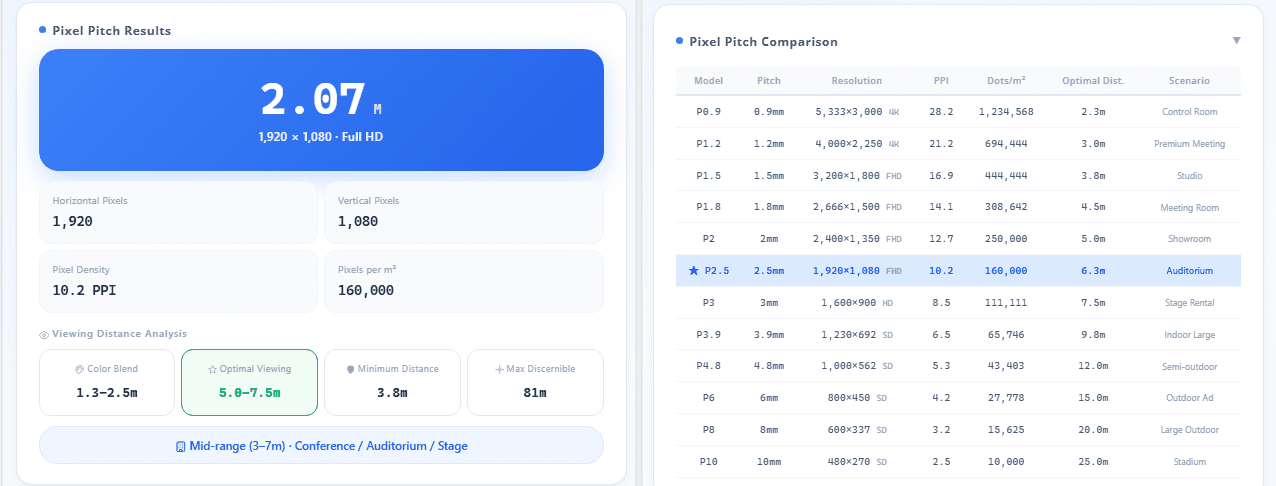
The right panel of the calculator includes a full comparison matrix across all 12 pitch tiers. It’s the most information-dense part of the tool — and the most useful once you understand it.
| Pitch | PPI | Dots/m² | Optimal Distance | Application Scenario |
|---|---|---|---|---|
| P0.9 | 28.2 | 1,234,568 | 2.3m | Broadcast studio, control room |
| P1.2 | 21.2 | 694,444 | 3.0m | High-end meeting room, luxury retail |
| P1.5 | 16.9 | 444,444 | 3.8m | Conference room, TV studio |
| P1.9 | 13.4 | 277,008 | 4.8m | Retail showcase, corporate lobby |
| P2.5 | 10.2 | 160,000 | 6.3m | Auditorium, conference hall |
| P3.9 | 6.5 | 65,000 | 9.8m | Large venue, stage rental |
| P6.0 | 4.2 | 27,778 | 15.0m | Outdoor signage |
| P10 | 2.5 | 10,000 | 25.0m | Stadium, highway billboard |
The highlighted row (P2.5) is your current selection. Read across: 10.2 PPI, 160,000 dots per square meter, optimal at 6.3m, built for auditoriums. Now scan up and down:
- One tier finer (P1.9): 13.4 PPI, optimal at 4.8m. If your viewing distance were 4–5m instead of 6m, this would be the pick.
- One tier coarser (P3.9): 6.5 PPI, optimal at 9.8m. Too coarse for 6m — your viewers would see pixel structure.
The table transforms the decision from "which pitch feels right?" to "which pitch matches my distance?" Find your measured viewing distance in the Optimal Distance column, then read left to see your pitch.
Scene Quick-Reference
The calculator’s Selection Guide includes a shortcut for common venues:
| Venue Type | Typical Viewing Distance | Recommended Pitch |
|---|---|---|
| Meeting room / Showroom | 3–5m | P1.2 – P1.5 |
| Auditorium / Stage | 5–10m | P2 – P3 |
| Outdoor advertising | 15–30m | P4 – P6 |
| Stadium | 30–50m | P8 – P10 |
Match your venue to the table first. Then fine-tune with the main calculator. If you’re building a conference room and the table says P1.2–P1.5, start your calculator session with P1.5 selected and verify it against your actual room measurements.
5.The Formulas Behind the Numbers
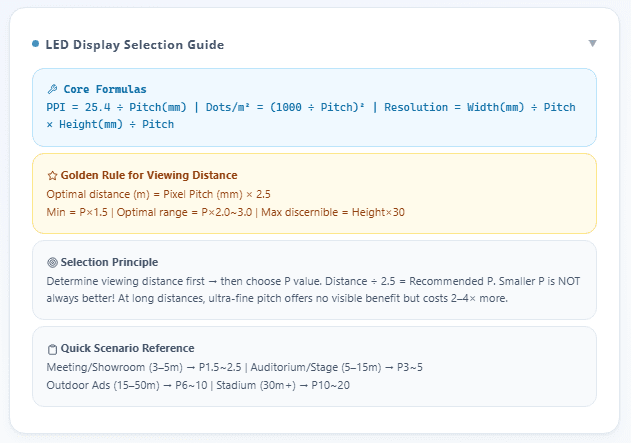
The calculator shows its work. In the Selection Guide panel, three core formulas are displayed:
PPI (Pixels Per Inch)
PPI = 25.4 ÷ Pixel Pitch (mm)For P2.5: 25.4 ÷ 2.5 = 10.2 PPI. This is the fundamental relationship — smaller pitch, higher PPI. The constant 25.4 converts millimeters to inches.
Dots per Square Meter
Dots/m² = (1000 ÷ Pixel Pitch)²For P2.5: (1000 ÷ 2.5)² = 400² = 160,000 dots/m². This number directly drives panel cost — more dots means more LEDs, more solder points, more driver ICs, more everything.
Resolution from Dimensions
Horizontal Pixels = Screen Width (mm) ÷ Pixel Pitch (mm)
Vertical Pixels = Screen Height (mm) ÷ Pixel Pitch (mm)
For our example: (4800 ÷ 2.5) × (2700 ÷ 2.5) = 1920 × 1080.
Viewing Distance Gold Rules
The tool displays four viewing distance formulas:
| Rule | Formula | For P2.5 |
|---|---|---|
| Optimal distance | Pitch × 2.5 | 6.25m |
| Minimum distance | Pitch × 1.5 | 3.75m |
| Optimal range | Pitch × 2.5 ~ 3 | 6.25m – 7.5m |
| Maximum distance | Screen Height × 30 | 2.7m × 30 = 81m |
These formulas are simple enough to run on a napkin. The calculator’s value isn’t in doing difficult math — it’s in running these formulas across all 12 pitch tiers simultaneously and presenting the results in a sortable, filterable comparison. You could do one calculation by hand. You wouldn’t want to do twelve.
6.FAQ
Q: What’s the difference between pixel pitch and PPI? Which one should I care about?
A: Pixel pitch (the P-value, measured in millimeters) is the physical distance between the centers of two adjacent LED clusters. PPI (pixels per inch) is the calculated density — how many pixels fit in one inch of screen. They’re two sides of the same coin: PPI = 25.4 ÷ Pixel Pitch. For most purchasing decisions, focus on pixel pitch — it’s what manufacturers quote and what the calculator recommends. PPI is useful for comparing across display technologies (LED vs LCD vs projection) where pitch isn’t a concept.
Q: The calculator recommends P2.5 for my room, but a vendor is pushing P1.8. Should I trust the calculator or the sales rep?
A: Trust the math, but verify both sides. At 6 meters, P2.5 sits squarely in the optimal viewing zone — the formula (2.5 × 2.5 = 6.25m) confirms it. P1.8 at 6 meters is over-spec — you’ll pay 40-60% more per square meter with zero visible improvement. That said, ask the vendor why they recommend P1.8. If your content includes small spreadsheet text or the wall will be filmed for broadcast, a finer pitch may be justified. If they can’t point to a specific content or camera requirement, they’re upselling.
Q: What if my viewing distance falls between two pitch tiers — say 4.5 meters?
A: At 4.5 meters, you’re on the boundary between P1.9 (optimal 4.8m) and P2.5 (optimal 6.3m). Go with P1.9 if: your content includes text smaller than 24pt, the wall faces cameras, or viewers frequently approach within 3 meters. Go with P2.5 if: your content is mostly video or large graphics, budget is tight, or the room is primarily used at 5m+. When in doubt, request a demo of both pitches at 4.5 meters and decide with your eyes.
Q: Does the calculator work for outdoor LED displays?
A: The pixel pitch math is the same regardless of indoor or outdoor use. But outdoor displays have additional requirements the calculator doesn’t address: brightness (need ≥5,000 nits to fight sunlight), weather sealing (IP65 minimum), and the fact that outdoor viewing distances are typically much larger (15m+), which means coarser pitches (P4–P10) are usually appropriate. Use the calculator for the pitch recommendation, but verify that your selected pitch is available in an outdoor-rated panel with sufficient brightness for your installation’s sun exposure.
Q: How accurate is the "maximum viewing distance" number? The calculator says 81 meters for P2.5.
A: The 81m figure (calculated as Screen Height × 30) is a theoretical maximum based on the limits of human visual acuity for detecting the presence of the screen. It is not a practical readability distance. For text legibility at standard presentation font sizes, the real-world maximum is closer to 20–30 meters for P2.5. For making purchasing decisions, use the optimal zone (5.0–7.5m for P2.5) and ignore the maximum distance entirely. It’s included for completeness, not for decision-making.
Q: How do I use the calculator’s output to compare quotes from different vendors?
A: Lock your specs first, then send the same requirements to every vendor. Your calculator output gives you the three numbers that define the bid: pixel pitch (e.g., P2.5), screen dimensions (4.8m × 2.7m), and target resolution (1920×1080). Send these three specs to every vendor and ask for a line-item quote covering panels, video processor, mounting structure, installation, and a 3-year service agreement. When vendors bid on identical technical requirements, the price comparison is honest. When you let each vendor recommend their own pitch, you’re comparing apples to aircraft carriers.
Q: COB and SMD panels at the same P-value — does the calculator treat them as equivalent?
A: The calculator’s formulas are physics-based and technology-agnostic — P2.5 COB and P2.5 SMD produce the same PPI, the same total resolution, and the same theoretical optimal viewing distance. In practice, COB (Chip-on-Board) has better fill factor — the gaps between pixels are smaller — which means it looks slightly sharper at close range and has better contrast. At distances beyond 4–5 meters, the difference is negligible. If your viewing distance is under 3 meters, COB’s fill factor advantage matters. Beyond 5 meters, buy whichever costs less.
Q: I already bought a screen with a pitch that’s too fine — P1.5 at a 6-meter viewing distance. What did I actually lose?
A: You lost money, not image quality. At 6 meters, your P1.5 screen looks identical to a P2.5 screen — the extra pixel density is beyond what the human eye can resolve at that distance. You also have higher ongoing costs: more LEDs means higher power consumption (P1.5 draws roughly 1.6× the power of P2.5 per square meter), more heat to manage, and more expensive replacement modules when something fails. The screen will look great — a P2.5 would have looked exactly as great for 40-60% less money. The fix isn’t replacing panels (don’t do that). The fix is remembering this lesson when you spec the next one.
7.From Calculator Output to Confident Purchase
You’ve completed the three steps: entered your dimensions, read the viewing distance analysis, and cross-checked with the planning tools. You now have a data-backed recommendation — for the example in this guide, P2.5 on a 4.8m × 2.7m wall at a 6-meter viewing distance, delivering native 1080p.
Before you sign a purchase order, do three things:
-
Request a physical demo at your actual viewing distance. Not at the vendor’s showroom optimized for 2-meter viewing. Stand 6 meters back and look at the P2.5 panel. Then look at P1.9 and P3.9 from the same spot. Confirm with your own eyes that P2.5 is the right choice.
-
Send identical specs to at least three vendors. Pixel pitch: P2.5. Screen size: 4.8m × 2.7m. Resolution: 1920×1080. Ask for line-item pricing: panels, video processor, mounting structure, installation, and 3-year warranty. Identical specs = honest price comparison.
-
If the wall faces cameras, test with your actual camera at venue distance. The calculator assumes human eyes. Cameras resolve pixel structure differently and can produce moiré patterns even when the image looks perfect in person. Shoot a test. If you see banding or flicker, you may need to go one pitch tier finer or upgrade to a processor with higher refresh rate.
The calculator gave you the numbers. Now go verify them in the real world. A 15-minute demo standing at the right distance beats a month of spec-sheet analysis.
Ready to buy? Contact our
for a step-by-step process from quote comparison to installation sign-off.