

2026-09-28T02:49:48+00:00September 29, 2026|Tags: FAQs NovaStar|
2026-09-22T02:47:54+00:00September 25, 2026|Tags: LED Display Knowledge|
2026-09-17T03:16:22+00:00September 20, 2026|Tags: LED Display Knowledge|
A successful LED wall installation depends on more than mounting cabinets and connecting cables. The controller must receive the right video signal, each receiving card must understand its modules, and the software must know how the cabinets are wired. NovaLCT V5.9.2 is NovaStar’s configuration tool for that work.
For an AV integrator preparing a rental wall, a contractor commissioning a fixed display, or a distributor supporting a customer, the practical questions are similar: Where is the correct download? Which configuration file belongs to this cabinet? Why does the picture appear in the wrong place? How do you make the settings survive a restart? This guide answers those questions in the order they arise on site.
The instructions focus on a typical NovaStar synchronous control system. NovaStar also publishes a separate NovaLCT V5.9.2 manual for multimedia players, so confirm your controller or player model before following a menu sequence. Device support and available settings vary by hardware and firmware. NovaStar’s download listing provides the software, both manuals, release notes, and driver.
1. What Is NovaLCT V5.9.2 Used For?
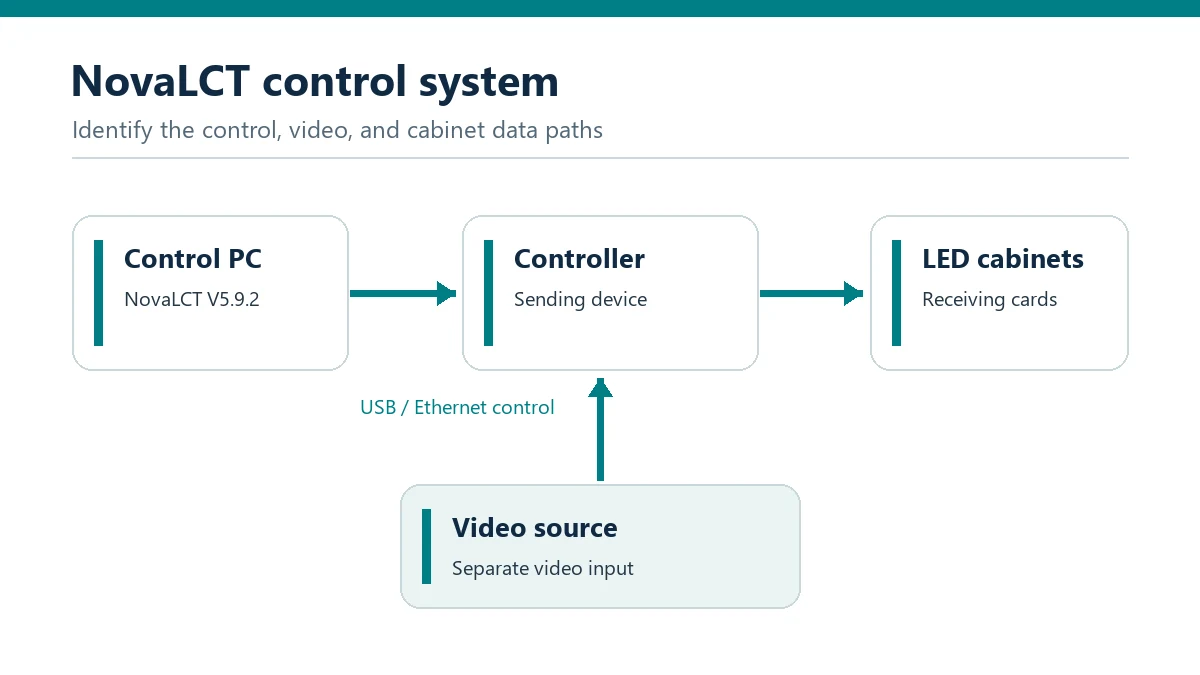
NovaLCT is an LED display configuration tool. In a synchronous system, a video source feeds a sending device or video controller. That device distributes image data through its output ports to receiving cards in the LED cabinets. NovaLCT V5.9.2 lets a technician configure parts of that chain and inspect connected hardware; it is not the video source itself.
The distinction matters when diagnosing a blank display. A laptop may communicate perfectly with a controller over USB while the controller receives no HDMI or other video input. Conversely, a controller may receive video but send it to cabinets with incorrect receiving card parameters or screen mapping. The software helps identify which layer needs attention.
Typical commissioning tasks include loading receiving card parameters, defining cabinet dimensions, mapping the physical data path, adjusting supported display settings, monitoring hardware, and saving configuration to the devices. Available functions depend on the controller and receiving cards. NovaStar documents these workflows in its synchronous control system manual; use the V5.9.2 manual from the download page for release-specific instructions.
| System component | Its job | What to confirm before configuration |
|---|---|---|
| Video source | Supplies the image | Output connector, resolution, and signal format |
| Sending device or controller | Receives video and distributes pixel data | Exact model, available inputs, output ports, and capacity |
| Receiving card | Drives the modules assigned to its cabinet | Card model, firmware, and matching cabinet file |
| LED modules and cabinets | Form the physical display | Pixel dimensions, module arrangement, and cable route |
| Control PC | Runs NovaLCT V5.9.2 | A working control connection to the target device |
For controller-specific context, our NovaStar VX6s guide explains one example of a sending device. For B2B projects, configuration is also a handover issue. A working screen is useful on installation day; documented settings are what allow another technician to replace a cabinet or rebuild the wall later.
2. Where to Download NovaLCT V5.9.2 Safely
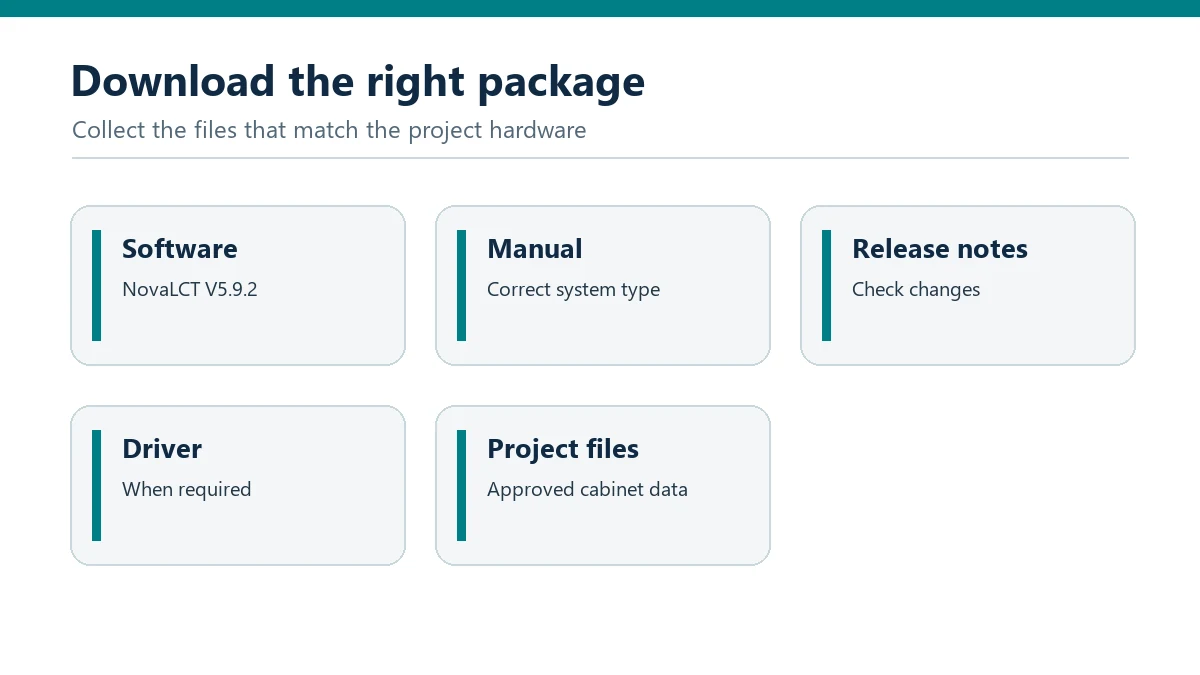
Start with NovaStar’s official download resources. The listing identifies NovaLCT V5.9.2 alongside its release notes, driver, and separate user manuals for synchronous control systems and multimedia players. EagerLED’s software download library also links to the official V5.9.2 package and groups other NovaStar tools for comparison.
Before downloading, record the controller or player model and the software version already used on the project. A service team may deliberately retain an older, proven configuration environment for an existing installation. For a new installation, check the current package and release notes against the hardware documentation. Avoid selecting a version solely because a third-party mirror labels it “latest.”
Keep the download, matching manual, and project configuration files together in a controlled job folder. This gives the commissioning team and future service staff a clear record of which software was used. If your organization has a software approval process, verify the installer through that process before using it on a production control PC.
NovaLCT V5.9.2 should be distinguished from other NovaStar applications. SmartLCT provides a different screen-configuration workflow; ViPlex tools address multimedia-player content workflows; and other controller families have their own management software. The presence of a NovaStar logo on two tools does not make their files or device support interchangeable.
3. System Requirements and Compatible NovaStar Hardware
NovaLCT V5.9.2 is provided as Windows software. NovaStar lists SmartLCT downloads for both Windows and Mac, but does not list a Mac edition of NovaLCT on the same download listing. Confirm operating-system requirements in the V5.9.2 manual before preparing a service laptop; requirements published for an older release may not describe the current installer.
Hardware compatibility needs a more specific check than “NovaStar controller.” Record the complete device model, its firmware version, receiving card model, and the display supplier’s cabinet configuration. A controller can be visible to the PC while a particular receiving card feature or configuration file remains unsupported. If a project uses an all-in-one processor or multimedia player, follow the documentation for that device’s operating mode.
| Item to obtain | Why it matters | Who usually supplies it |
|---|---|---|
| Controller or player model | Determines the relevant manual and control connection | Integrator or project designer |
| Receiving card model and firmware | Determines available card functions and file compatibility | Display supplier or service team |
| Cabinet pixel dimensions | Defines each cabinet’s mapped image area | Display manufacturer |
| Approved receiving card file | Carries parameters matched to the cabinet hardware | Display manufacturer |
| Port and cable schedule | Identifies which controller output feeds each cabinet chain | Integrator or installation team |
| Target screen resolution | Helps align source, controller, and display configuration | System designer |
For a new EagerLED project, request those details as part of the technical handover rather than waiting until the crew reaches the site. Our LED display buying guide covers the wider screen-selection questions that precede controller configuration. EagerLED supplies rental and fixed LED display products; the appropriate controller, receiving card, and software workflow should be confirmed for the specific display package being purchased.
4. How to Install NovaLCT and Its Drivers
Download NovaLCT V5.9.2 and the driver from NovaStar’s listing, then follow the installation procedure in the matching manual. Use a Windows account with the permissions required by your organization to install software and device drivers. Close earlier NovaLCT sessions before running the installer, and keep a copy of the previous project files if you are servicing an existing wall.
After installation, open the application and check the version shown in its interface. If Windows does not recognize the connected controller, verify the physical cable and USB port before changing screen settings. Install the NovaStar driver supplied for the software where the manual or device workflow requires it, then reconnect the controller and check detection again.
Do not treat a successful installation as proof that the display is ready. NovaLCT V5.9.2 can open without a connected sending device. Controller discovery, video input, receiving card communication, and LED output are separate checks.
A practical preparation routine is to test the software and control cable at the workshop, with the actual controller when possible. This is especially useful for rental systems that must be rebuilt under time pressure. Save the installer and approved configuration files where the authorized technicians can retrieve them offline.
5. How to Connect Your PC to a NovaStar Controller
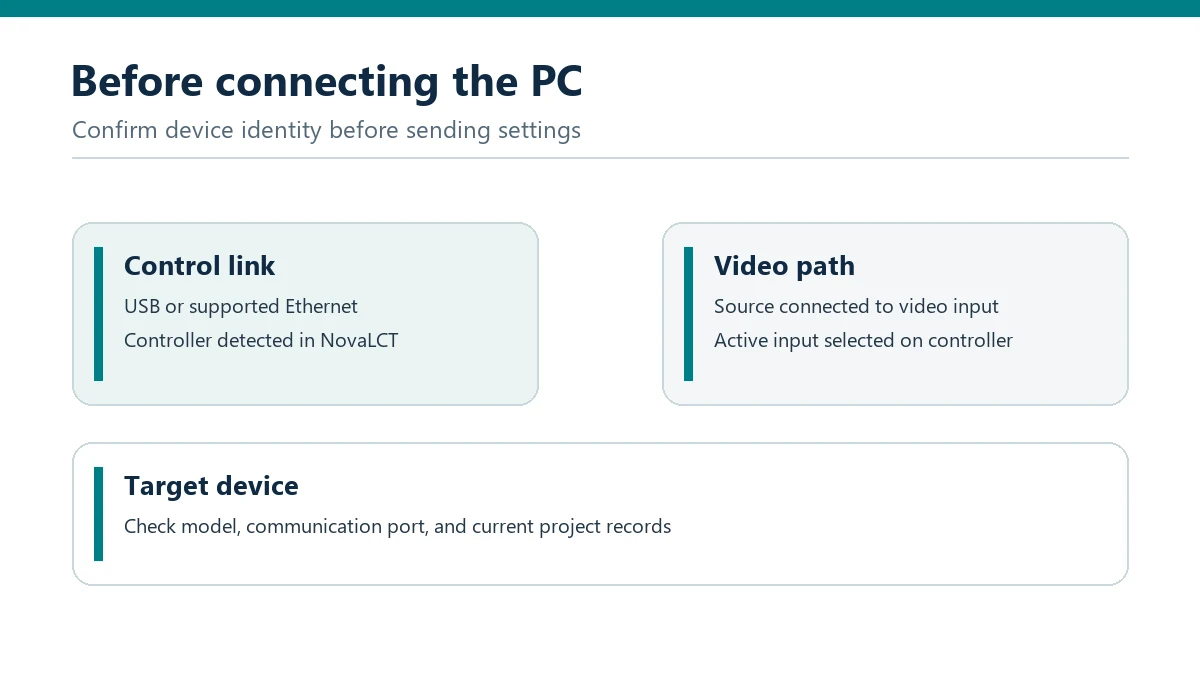
The PC’s control connection and the wall’s video and cabinet connections serve different purposes. In a typical synchronous setup, the PC running NovaLCT V5.9.2 connects to the sending device through a supported USB or Ethernet control connection. The video source connects to a video input, while the controller’s data outputs feed the receiving cards. NovaStar’s connection guidance describes USB and Ethernet control paths.
Power and connect the equipment according to the device manuals and the site’s electrical plan. Open NovaLCT and confirm that it identifies the expected device and communication port. On a site with multiple controllers, verify the device identity before sending any settings; selecting the wrong target can disrupt another screen.
For synchronous-system configuration, the manual describes an advanced user login followed by Settings > Screen Configuration. Menu labels may differ by release or device, so use the NovaLCT V5.9.2 manual as the authority at the console. Before changing a functioning installation, read back or export available settings and record the original state.
If the application shows a controller but the wall stays dark, check the video input and the cabinet data chain separately. If the controller does not appear at all, focus first on power, the control cable, the chosen port, the driver, and network settings where Ethernet control is used. Changing receiving card parameters will not repair a missing PC-to-controller connection.
6. How to Configure LED Receiving Cards and Cabinets
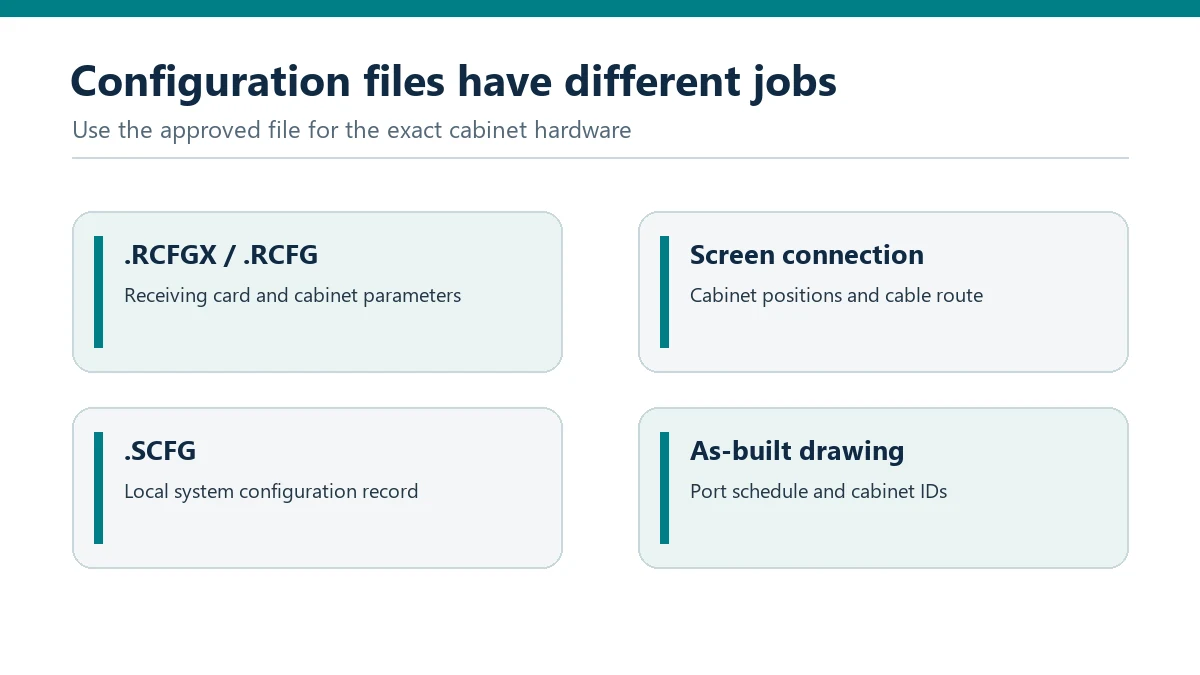
Receiving card settings tell the hardware how to drive the LED modules. They can include module and cabinet parameters that depend on the actual components fitted inside the display. That is why a configuration file from an unrelated wall is a poor shortcut, even when two cabinets have the same external dimensions.
Ask the display manufacturer for the approved file for each cabinet type. NovaStar’s documentation describes importing .rcfgx or .rcfg receiving card files where supported, and it documents other configuration methods for certain products. In NovaLCT V5.9.2, select the method applicable to your receiving card and verify the result on a controlled section before distributing it across a full wall. NovaStar’s manual explains the different file roles and receiving-card workflow.
| File or record | Typical purpose | Handling rule |
|---|---|---|
.rcfgx or .rcfg |
Receiving card and cabinet parameters | Use the version approved for the exact cabinet hardware |
| Screen connection file | Physical cabinet layout and data path | Match it to the installed port and cable route |
.scfg system configuration |
Local record of broader screen configuration | Archive it with the project documentation |
Device-specific package, such as .ncp where supported |
Configuration for applicable NovaStar products | Use only when the device manual calls for it |
| Port schedule and cabinet drawing | Human-readable installation reference | Update it when site wiring changes |
A useful first test is one known cabinet or a small, accessible group. Confirm that the expected area lights correctly and that test content has sensible orientation and color. If a cabinet shows abnormal patterns, stop and verify its receiving card file, module type, and physical connections. Random changes to scan or chip settings can make diagnosis harder and can disturb a configuration that was previously correct.
For mixed display inventory, label configuration files by cabinet model and hardware revision, not simply by event or customer name. NovaLCT V5.9.2 may be the same application across several projects, but the approved receiving card data can differ.
7. How to Map the LED Screen and Save Its Configuration
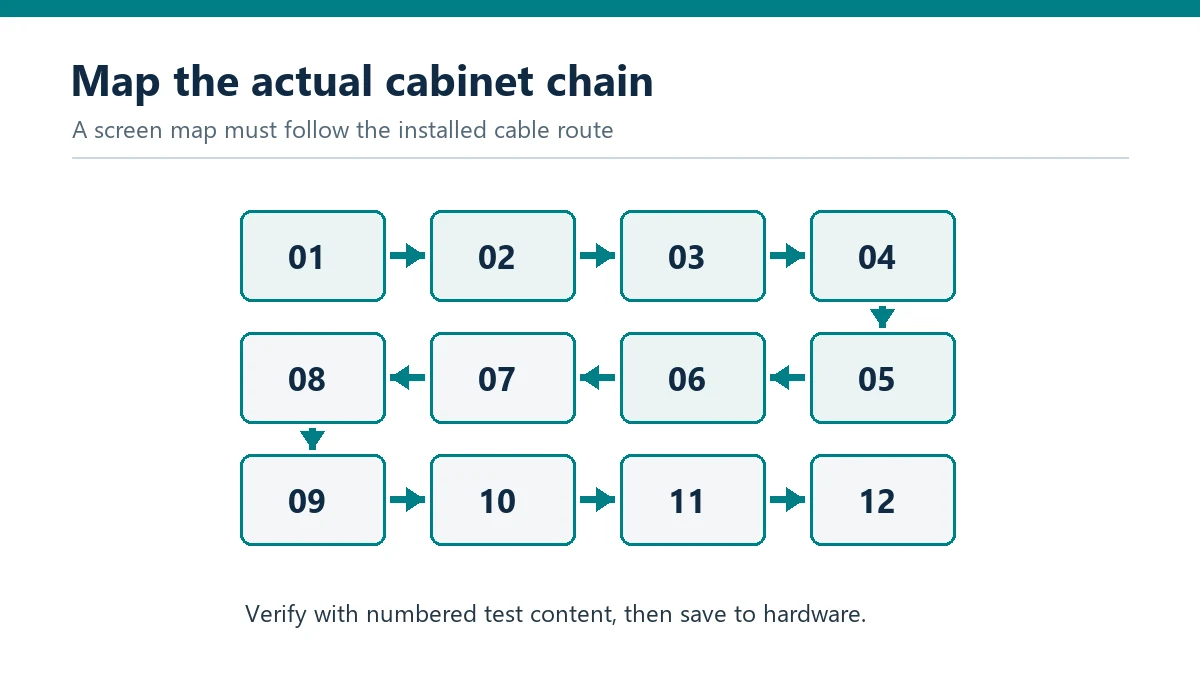
Receiving card parameters make cabinets capable of displaying an image; screen mapping places each cabinet’s image in the right position. In NovaLCT V5.9.2, the screen connection workflow should reflect the cabinets’ physical arrangement, their pixel dimensions, the controller output used, and the actual order of the data cables.
Start from the as-built layout rather than a sales drawing if the installation changed on site. Trace one controller output at a time. Note the first cabinet on the chain, the direction of travel, and where the cable leaves the final cabinet. A wall can have every cabinet illuminated yet still show a scrambled picture because the software map assumes a different cable path.
Before setting the map, cross-check the planned pixel dimensions with our LED display resolution calculator. After setting the map, use recognizable test material: a numbered grid, corner labels, or a moving marker. A plain white image can reveal dark modules but cannot prove that the upper-right cabinet is receiving the upper-right portion of the picture. Verify orientation, boundaries, and seams before making image-quality adjustments.
Finally, distinguish sending settings from saving them. NovaStar’s workflow includes sending configuration to hardware and saving it where the device supports that action. Follow the prompts in NovaLCT V5.9.2, export the project records, and perform a controlled restart to confirm the wall returns with the intended layout. NovaStar’s screen-configuration guidance documents the send and save operations.
For project handover, retain the final configuration, software version, controller and receiving card models, firmware versions, port schedule, and a photograph of the correctly mapped test image. This small package is more valuable to a future service technician than an unlabelled folder of configuration files.
8. Common NovaLCT Setup Problems and Fixes
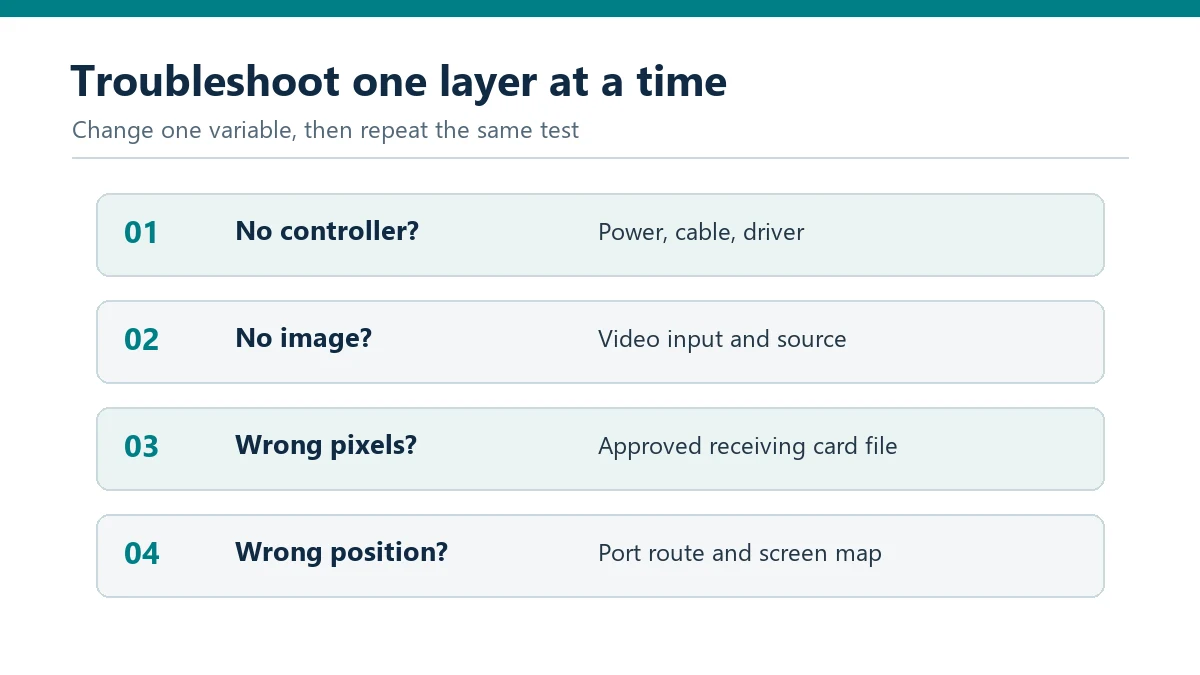
Troubleshooting works best when you isolate the fault by layer: control connection, video input, receiving card configuration, or cabinet mapping. Repeatedly sending new files to the entire wall obscures which change helped.
| Symptom | First checks | Avoid assuming |
|---|---|---|
| Controller absent from NovaLCT V5.9.2 | Controller power, control cable, selected port, driver, Ethernet settings | That the LED modules are defective |
| Controller detected, screen black | Active video input, source signal, output assignment, cabinet power | That the PC control link carries video |
| Cabinets light but image is scrambled | Approved receiving card file, cabinet dimensions, data cable order | That brightness settings will fix mapping |
| Image appears in the wrong position | Output port assignment and screen connection map | That the receiving card file is necessarily wrong |
| Some cabinets remain dark | Power, data link, receiving card status, the first failed point in the chain | That every dark cabinet has the same fault |
| Wall changes after restart | Whether settings were saved to hardware; whether the correct project file was archived | That “Send” completed permanent storage |
Change one variable at a time and retest with the same pattern. If the first cabinet on a data chain works but all cabinets after it fail, inspect the connection at that boundary. If all cabinets display the same wrong image area, investigate the map or source setup before replacing modules.
Firmware updates deserve their own change plan. Confirm the exact device model, current firmware, approved target version, and recovery procedure with the manufacturer or authorized support channel. NovaLCT V5.9.2 provides configuration capabilities, but an available update control is not a reason to update a stable system during an event load-in.
9. NovaLCT vs SmartLCT: Pros, Cons, and Controller Choice
The better tool is the one supported by the complete control system and required screen design. NovaLCT V5.9.2 is a strong fit when a project depends on its detailed NovaStar receiving card and screen-configuration workflow. SmartLCT is another NovaStar screen-configuration option; NovaStar presents it for visual configuration workflows and lists both Windows and Mac downloads. Some creative display solutions specifically pair SmartLCT with compatible controllers and receiving cards. NovaStar’s SmartLCT information describes that use case.
| Decision point | NovaLCT V5.9.2 | SmartLCT |
|---|---|---|
| Main consideration | Detailed configuration and maintenance workflow for supported NovaStar systems | Visual screen design for supported hardware and layouts |
| Operating system listed by NovaStar | Windows | Windows and Mac |
| Potential advantage | Familiar workflow for technicians managing receiving cards and conventional walls | Useful visual approach for applicable creative layouts |
| Limitation to check | Windows requirement and device-specific feature support | Exact controller, receiving card, and feature compatibility |
| Best purchasing question | “Will our specified hardware and service team use this workflow?” | “Does the proposed hardware support the design functions we need?” |
These are workflow comparisons, not universal claims that one application can replace the other. Before buying a controller for a new LED wall, calculate the project’s pixel load, confirm input and output requirements, identify redundancy needs, and ask the supplier to validate the software path with the exact hardware models. Include control equipment and commissioning in the LED display installation budget. An unusual shape, frequent rental reconfiguration, or a customer’s Mac-based service team can change that decision.
For an EagerLED quotation, give the sales and technical team the intended cabinet arrangement, total pixel dimensions, signal sources, installation environment, and service expectations. That allows the display and control package to be specified together instead of treating NovaLCT V5.9.2 compatibility as an afterthought.
10. FAQ
01. Is NovaLCT V5.9.2 available for Mac?
NovaStar lists NovaLCT V5.9.2 as a Windows download and does not list a Mac edition on its software page. SmartLCT has a Mac download, but check whether it supports your controller and required functions before choosing it as an alternative.
02. Does NovaLCT V5.9.2 need internet access to configure a screen?
A local control connection to supported hardware is central to on-site configuration. Some optional download, cloud, or remote-service workflows may require internet access. For an offline site, bring the installer, manual, approved configuration files, and project records with you.
03. Can NovaLCT V5.9.2 play advertising content on an LED wall?
Its primary role is configuring and managing supported LED control hardware. Content playback or publishing depends on the video source, controller, or multimedia-player workflow. Specify that workflow separately when planning an advertising screen.
04. What should I request if a replacement cabinet displays different colors?
Ask for the replacement cabinet’s exact hardware identity and approved configuration information. Check whether its modules, receiving card, firmware, and calibration data match the existing inventory. NovaLCT V5.9.2 can help inspect and apply supported settings, but copying an unrelated file may worsen the mismatch.
05. Can one receiving card file be used for every cabinet of the same size?
No assumption should be made from physical size alone. Two cabinets can share dimensions while using different modules, driver components, receiving cards, or hardware revisions. Have the manufacturer confirm which file applies to each cabinet group before using NovaLCT V5.9.2 to distribute it.
06. Why does NovaLCT V5.9.2 show a device but no screen?
Device detection confirms a control connection, not a complete screen configuration. Check whether the screen connection has been configured or read from hardware, then verify video input and the cabinet chain. NovaStar’s manual includes a “No Screen” troubleshooting entry.
07. Should I update controller firmware before installing NovaLCT V5.9.2?
Not automatically. Compare the installed firmware with the compatibility information for the controller and the required functions. Plan firmware changes separately, with the correct package, a configuration backup, and a recovery path.
08. Can the control laptop be disconnected after commissioning?
That depends on the system design and what the laptop provides. A synchronous wall still needs its intended video source and controller; a PC used only for configuration may be removable after the settings have been saved and tested. If that PC also supplies the live video signal, disconnecting it removes the source.
11. Conclusion
NovaLCT V5.9.2 is most useful when it is treated as part of a documented commissioning process: obtain the official software and correct manual, identify the hardware, load approved receiving card data, map the real cable path, save the configuration, and test it after a restart. Those steps address the problems professionals encounter most often when an LED wall lights up but does not display the right image.
For buyers and integrators, the work begins before installation. Specify the display cabinets, control hardware, software workflow, and handover files as one system. That makes NovaLCT V5.9.2 setup faster on site and gives the customer a screen that can be maintained long after the first successful power-up.

 How to Choose a Church LED Screen: 10 Practical Checks